 Alec Young
 Manage Consignments overview
The Manage Consignments menu is the home of the consignments submitted by your Vendors and Consignors, accessible only by your Site Managers and Auctioneers.
Manage Consignments is where you will:
- View, Revise and Approve or Reject your Pending consignments
- Assign your approved consignments to an Auction
- View your Reconciled Consignments results
- Re-assign Unsold Consignments
- Process Removal and Withdrawal requests from your Vendors and Consignors
Opening the Manage Consignments menu
Manage Consignments is now housed within the dedicated Consignment Manager menu:
- From anywhere in VendorPlus, place your cursor over the Consignment Manager option in the main nav, then click Submissions inside the dropdown:
 Float your cursor here and click Submissions in the dropdown
- Float your cursor here and click Submissions in the dropdown
Manage Consignments – tab-by-tab breakdown
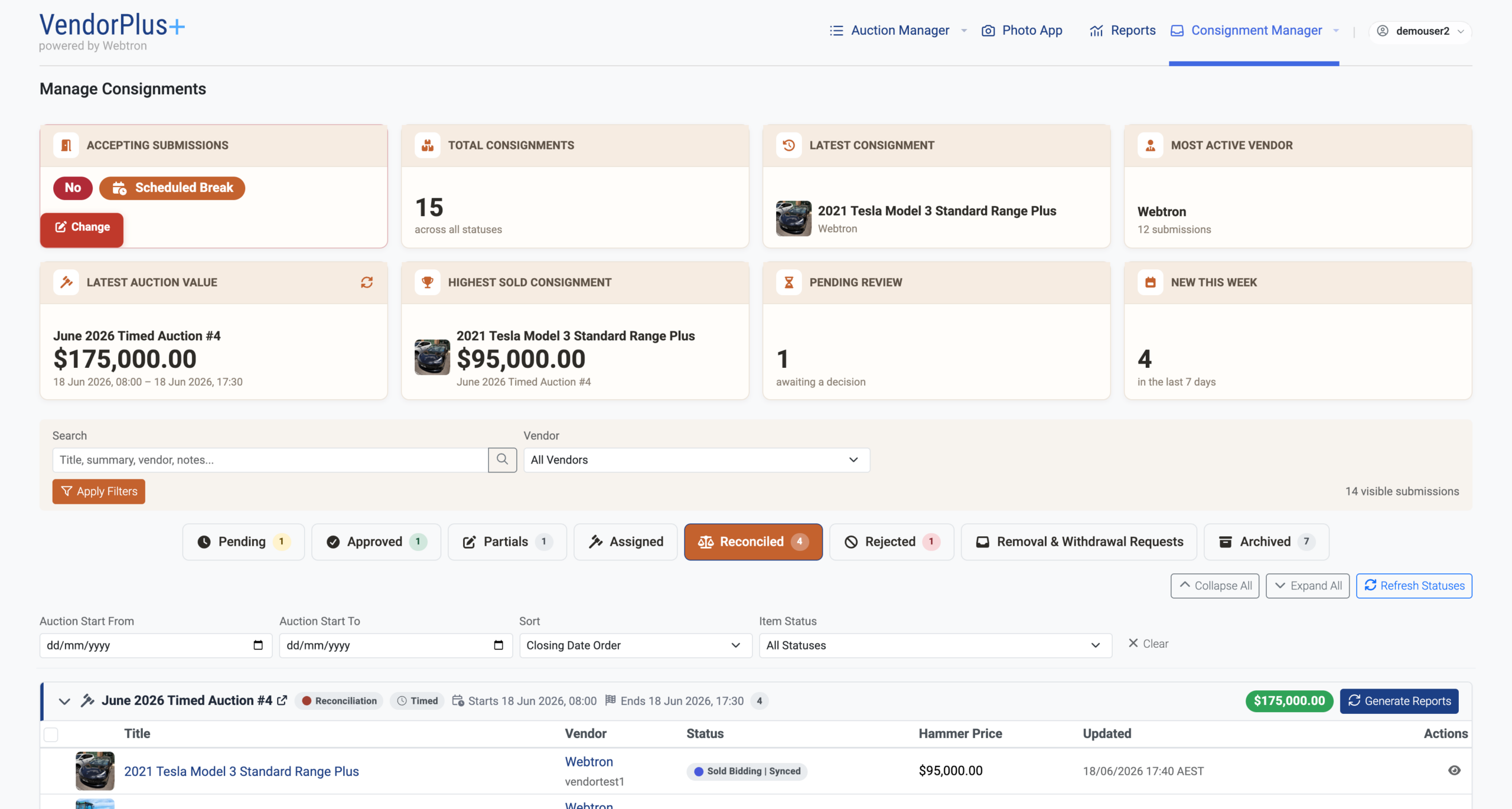
The Manage Consignments menu is divided up into these tabs:
- Pending – houses new and unreviewed consignment submissions
- Approved – houses approved consignment awaiting assignment to an auction
- Partials – houses submissions that have been saved as draft but not submitted by the Vendor/Consignor
- Assigned – displays each Auction in Live status containing assigned consignment Items/Lots
- Reconciled – displays each Auction in Reconciliation status containing Consignments marked as Sold, Unsold or Withdrawn
- Rejected – houses rejected consignment submissions
- Removal & Withdrawal Requests – houses consignments that have been nominated for removal or withdrawal by their Vendor/Consignor
- Archived – houses Consignments that have been archived, usually from Removal requests.
Here’s a full breakdown of each tab:
Pending
The Pending tab is home to all of your new and unreviewed submissions, with each submission appearing as a row in the Pending table:
The Pending table will display a breakdown of the key details for each submission:
- Title and Summary – Click on the title to open the Submission Details panel
- Vendor Name and Username – Click on the Vendor’s name to open their Vendor Account Profile
- Bidding & Purchase Options – Displays each of the Bidding & Purchase Options your Vendor/Consignor has chosen, as well as their value (i.e. if they have filled in the Opening Bid field, the badge will display Opening Bid: [Amount])
- Submitted – Date and Time
- Revisions – The special Revisions button will appear if the Vendor/Consignor has made revisions to their submission
- Actions – Approve, Reject, Revise/Edit and View Submission Details
Your Site Managers and Auctioneers can review each Consignment by clicking on the Title or the button under the Actions column:
They can then either Approve, Reject or Revise each Pending submission, or Approve/Reject in bulk by using the checkboxes at the left-hand edge of the Pending table:
For more information, check out our Approving, Rejecting and Revising Pending Consignments guide here.
Submission Details panel
The Submission Details panel can be opened from any of the Manage Consignment tabs, primarily by clicking on the consignment’s Title.
This panel will contain a full breakdown of details provided by the Vendor/Consignor, broken up into 3 sections:
- Gallery, Vendor, and Bidding & Purchase Details
- Item Description
- Condition Report, Documents and Consignment History (Revisions and Activity)
Approved
The Approved tab contains consignments your Site Managers and Auctioneers have marked as approved, as well as Unsold consignments that are waiting for a new auction to call home.
The Approved table will display a breakdown of the key details for each consignment:
- Title and Summary – Click on the title to open the Submission Details panel
- Vendor Name and Username – Click on the Vendor’s name to open their Vendor Account Profile
- Bidding & Purchase Options – Displays each of the Bidding & Purchase Options your Vendor/Consignor has chosen, as well as their value (i.e. if they have filled in the Opening Bid field, the badge will display Opening Bid: [Amount])
- Approved By – Lists the username of the Site Manager or Auctioneer who approved or re-assigned this consignment
- Approval Date – Lists the date and time this consignment was marked as approved or re-assigned to the approved tab
- Actions – Edit/Revise, View Submission Details, and Return to Pending
Consignments in the Approved tab are essentially awaiting assignment to an Auction, for more information, check out our Assigning Consignments to Auctions guide here.
Partials
The Partials tab houses submissions in Abandoned status, which are essentially consignments that have been sitting in Draft status for 7 days or more. The Partials menu gives you the option to Mark for Removal, this will display a special badge on that Vendor/Consignors submission in the My Consignments menu:
If the Vendor/Consignor makes no further edits to that consignment, it will be automatically archived after 7 days.
Assigned
The Assigned tab displays each of the Auctions in Live status that currently house assigned Consignments. Each Auction appears as it’s own table/card, with a header section displaying the:
- Auction Title
- Status – usually Live
- Auction Type – Timed, Webcast or the Marketplace
- Auction Dates – Start and End Date and Time for Timed Auctions, and Live Bidding Start Date and Time for Webcast Auctions.
Each Auction table will contain a list of consignments, displaying a breakdown of the key details for each:
- Title and Summary – Click on the title to open the Submission Details panel
- Vendor Name and Username – Click on the Vendor’s name to open their Vendor Account Profile
- Linked Lot – This column will display the Lot # assigned to this consignment for this Auction, and also acts as a link to open the Edit Item menu for that Item.
- Status – This column will display the Lot’s current status (Draft, Live, Suspended, Sold, Unsold, or Withdrawn)
- Assigned By – Lists the username of the Site Manager or Auctioneer who assigned it to this auction.
- Assigned On Date – Lists the date and time this consignment was assigned to this auction.
- Actions – View Submission Details
Auctions and their Consignments will automatically move from the Assigned tab to the Reconciled tab after your Dashboard Admins have move the Auction from Live to Reconciliation status.
Reconciled
The Reconciled tab displays each of the Auctions in Reconciliation status that currently house assigned Consignments. Each Auction appears as it’s own table/card, with a header section displaying the:
- Auction Title
- Status
- Auction Type – Timed, Webcast or the Marketplace
- Auction Dates – Start and End Date and Time for Timed Auctions, and Live Bidding Start Date and Time for Webcast Auctions.
- Consignment Counter – Number of Consignments in this Auction
- Consignment Hammer Total – Total value of all Consignments in Sold status
- Generate Reports button – Displays as Generate Reports, and then Re-generate Reports, with Full Report and Vendor Reports options listed after Generate Reports is run for the first time.
Each Auction table will contain a list of consignments, displaying a breakdown of the key details for each:
- Title and Summary – Click on the title to open the Submission Details panel
- Re-assigned consignments will display one of two special badges; Re-assigned to [Auction Title], or Returned to Approved.
- Vendor Name and Username – Click on the Vendor’s name to open their Vendor Account Profile
- Linked Lot – This column will display the Lot # assigned to this consignment for this Auction, and also acts as a link to open the Edit Item menu for that Item.
- Status – This column will display the Lot’s current status (Sold Bidding, Sold Buy Now, Sold Make Offer, or Unsold)
- Hammer Price – Lists the amount this Consignment sold for.
- Updated Date – Lists the date and time this consignment’s status changed from Live to either Sold or Unsold.
- Actions – View Submission Details or Re-assign (Unsold consignments only)
Auctions and their Consignments will automatically move from the Reconciled tab to the Archived tab after your Dashboard Admins have move the Auction from Reconciliation to Archived status.
Rejected
The Rejected tab lists each of the consignments that have been rejected by your Site Managers and Auctioneers.
The Rejected table will display a breakdown of the key details for each submission:
- Title and Summary – Click on the title to open the Submission Details panel
- Vendor Name and Username – Click on the Vendor’s name to open their Vendor Account Profile
- Reason – Displays the “Reason for Rejection” message provided by the Site Manager or Auctioneer
- Rejected By – Lists the username of the Site Manager or Auctioneer who rejected this submission
- Rejected On Date – Lists the date and time this consignment was marked as approved or re-assigned to the approved tab
- Actions – Return to Pending/Reconsider
If a submission is Rejected by one of your Site Managers or Auctioneers, the Vendor/Consignor will receive an email notifying them of the decision and the reason for rejection. The Rejected table then gives you the option to Reconsider the rejection and return the submission to the Pending tab, if the Vendor/Consignor doesn’t or is unable to provide revisions.
Removal & Withdrawal Requests
The Removal & Withdrawal Requests tab lists off requests from your Vendors and Consignors to have their consignments either removed and archived, or withdrawn from their current Auction.
When can they request each option? Vendors and Consignors can request Removal if their consignment is in Draft, Pending or Approved status. They can request Withdrawal if the consignment has been Assigned to an auction.
The Removal & Withdrawal Requests table will display a breakdown of the key details for each request:
- Title – Click on the title to open the Submission Details panel
- Request Type – a badge will appear directly beneath the Title specifying if the request is for Removal or Withdrawal
- Vendor Name and Username
- Requested Date – Displays the Date and Time the request was submitted
- Reason for Removal/Withdrawal – Displays the reason provided by the Vendor/Consignor for their request
- Actions – Accept or Decline
For more information, check out our Actioning Removal & Withdrawal Requests for Consignments guide here.
Archived
The Archived tab lists consignments and submissions in Archived status, appearing in per-Auction tables or in the Un-assigned Consignments table.
Consignments and submissions will be moved to the Archived tab if:
- Their assigned Auction is moved to Archived status in the Webtron Dashboard
- The Vendor/Consignor’s Removal or Withdrawal request is accepted
- Your Site Managers or Auctioneers use the Archive action on submissions in Rejected status
Consignments in the Archived tab can be Restored to Pending or Reinstated to Assigned status, otherwise they can be manually deleted or will be automatically deleted after 45 days.