 Alec Young
 If you’re new to the VendorPlus Auction Manager, or VendorPlus in general, we have a few broad recommendations, starting points and tips we think you’ll find helpful.
Item and Lotting Recommendations
Create Blank Lots + Simultaneous Lotting
If you have multiple team members set up as Auctioneers and Yard Officers, we heavily recommend utilising the Create Blank Lots feature.
Create Blank Lots enables you to bulk create blank “shells”, you can then divide them up amongst your team (i.e. John handles Lots 1-50, Anna handles Lots 51-100), your team them just edits these shell lots, rather than creating new Lots from scratch each time.
The “Create Blank Lots” option appears in two places:
- Create New Auction – here it is listed as the final section before you hit the Create New Auction button
- Inside the Item List – here it is present inside the Actions bar at the top of the Item List
You can pick from a Quick Quantity of 100, 250, or 500, or put in a rough estimate of how many you’ll need, and you can always add more via the Item List on an as-needed basis.
Item Badges
The Item Badges feature gives you not only a quick snapshot of the important details of your Items, it also gives you a handy shortcut to change those details without having to open the Edit Item page.
You can toggle which of the Item Badges you’d like to see by clicking the Item Badges button at the top-right of the Item List:
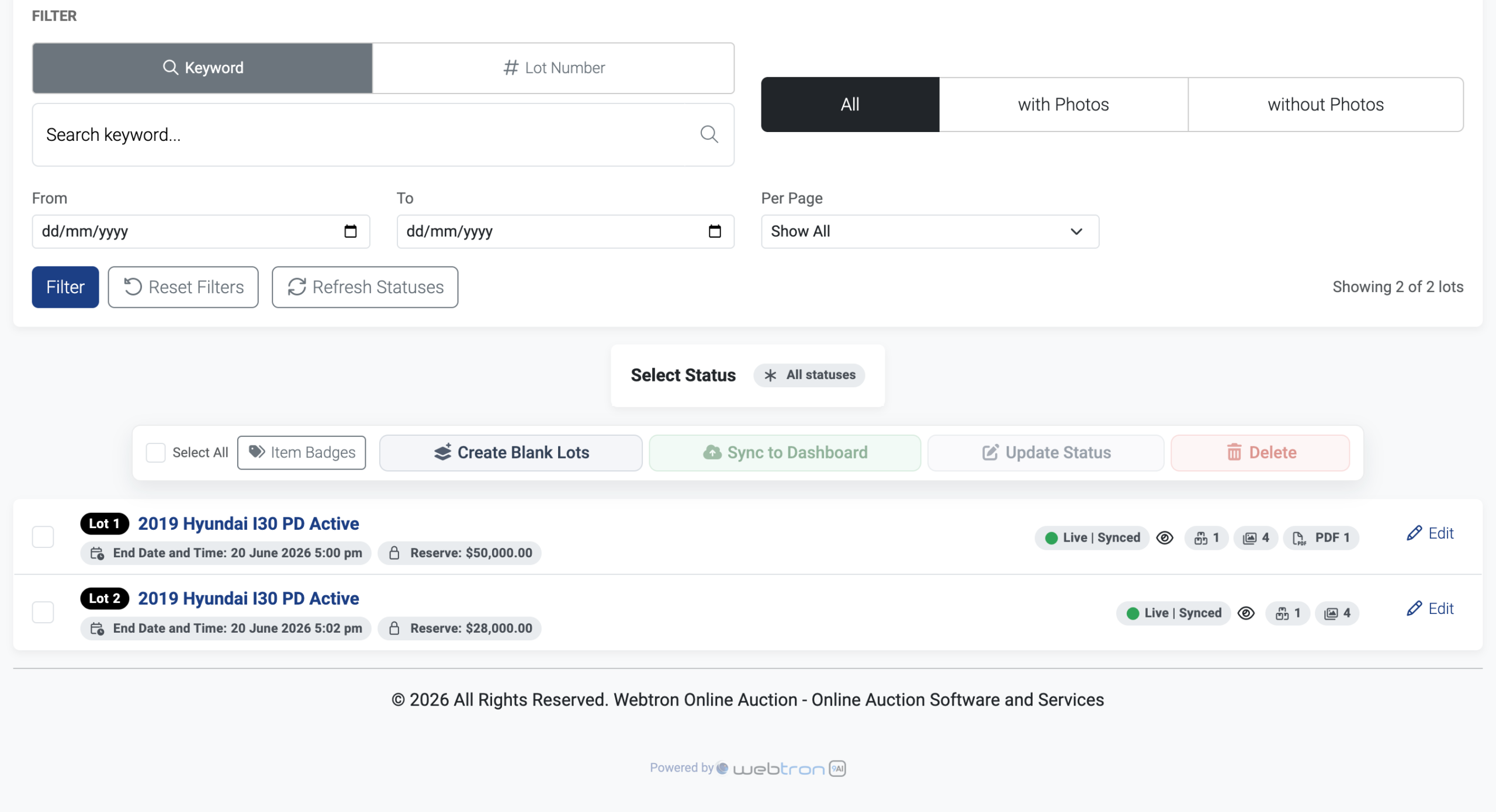 Item Badges appear beneath your Item Titles hereToggle your Item Badges by clicking this button
- Item Badges appear beneath your Item Titles here
- Toggle your Item Badges by clicking this button
You’ll then see a panel at the centre of your screen, click on the toggle next to any of the options listed to enable that badge:
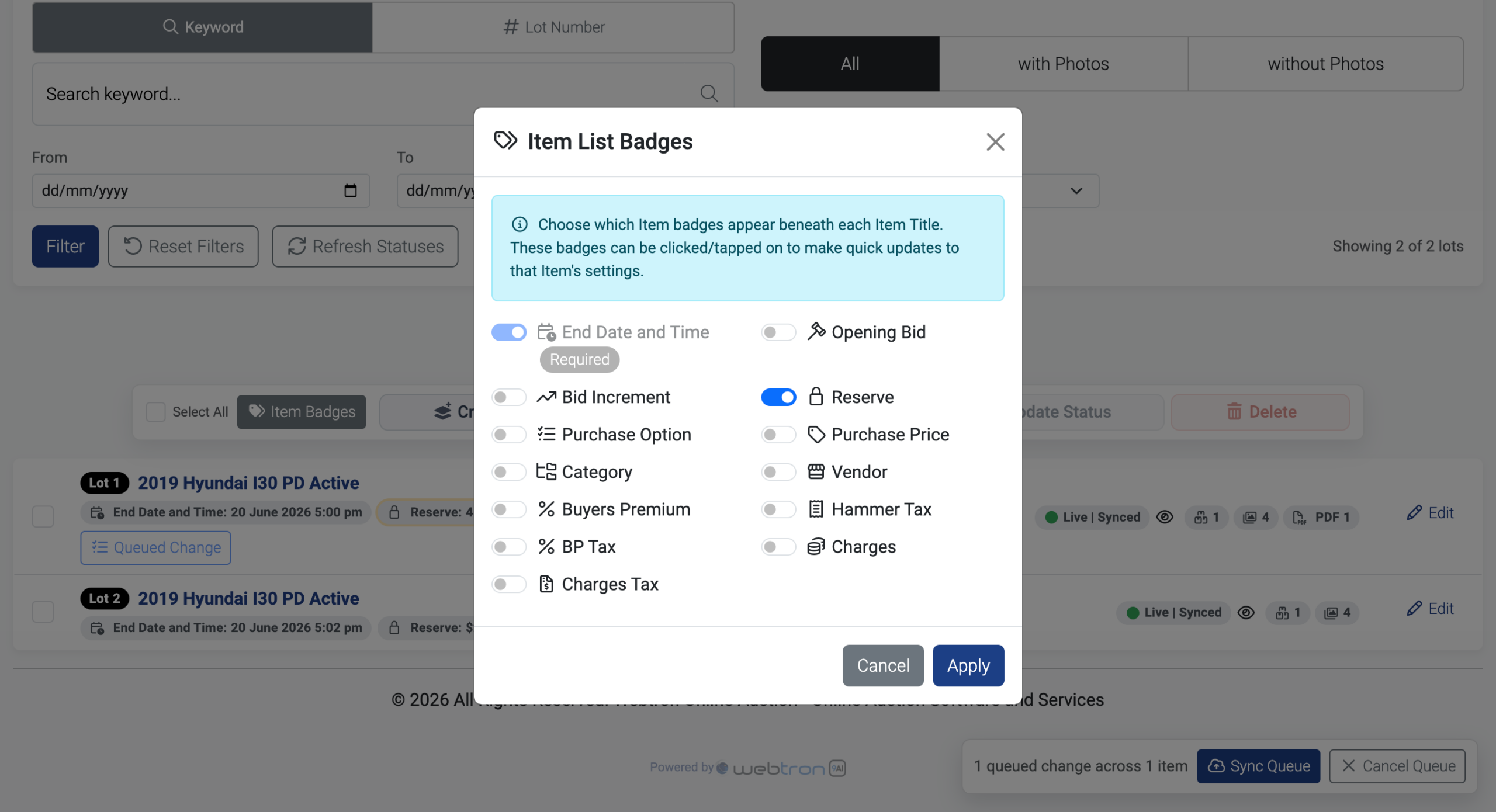 Click the toggle to enable each badgeThen click Apply to refresh the page
- Click the toggle to enable each badge
- Then click Apply to refresh the page
Then, for certain badges, you can click or tap on the badge to make a quick edit. That edit will then join a sync queue, allowing you to make a few other tweaks to the same or other items, and then sync all your changes at once:
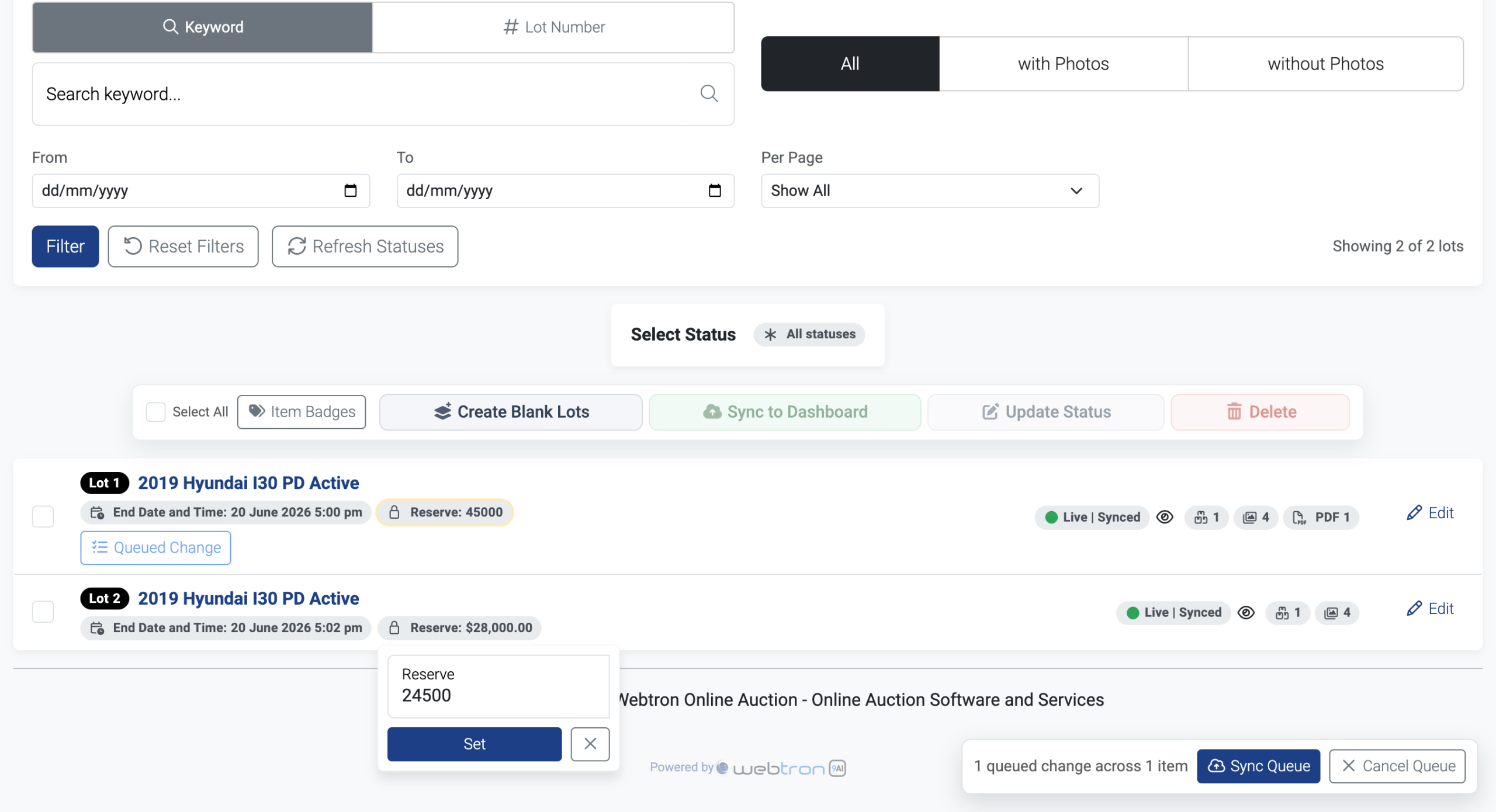 Click or tap on the badgeEdit the current value, then click SetClicking Set will add your changes to the Sync QueueClick Sync Queue when you’re doneYour changes will be synced over to the Webtron Dashboard
- Click or tap on the badge
- Edit the current value, then click SetClicking Set will add your changes to the Sync Queue
- Click Sync Queue when you’re doneYour changes will be synced over to the Webtron Dashboard
Customised Express Mode
The Express Mode section of the New Item builder is now completely modular, meaning you can add any additional fields from Full Mode to your Express Mode list.
Need to make changes to your Buyers Premium on each Item? Easy, in the Express Mode header, click the Customise button:
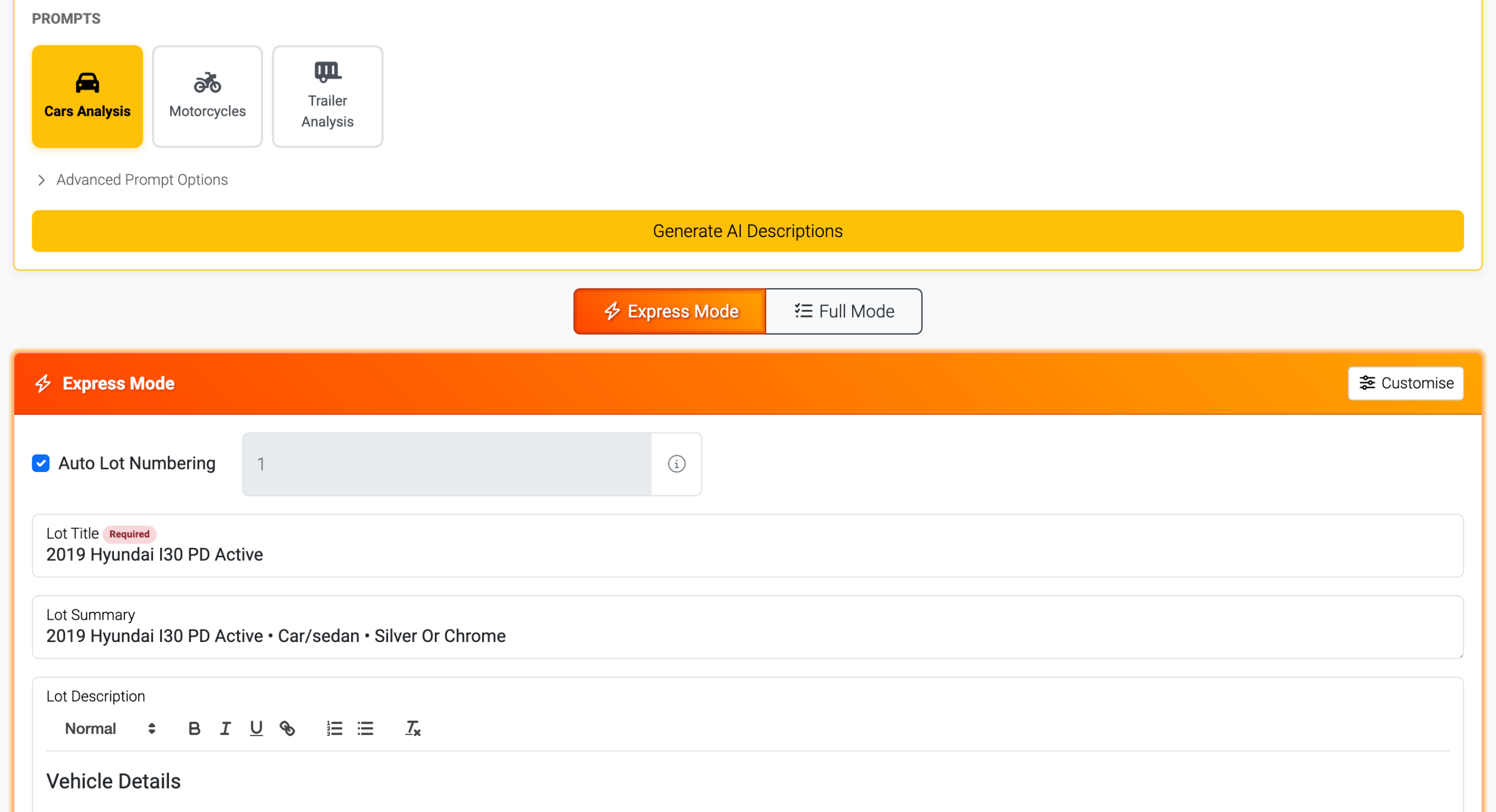 Click here to Customise Express Mode
- Click here to Customise Express Mode
A panel will appear at the centre of your screen, toggle Buyers Premium & Taxes, and click Apply:
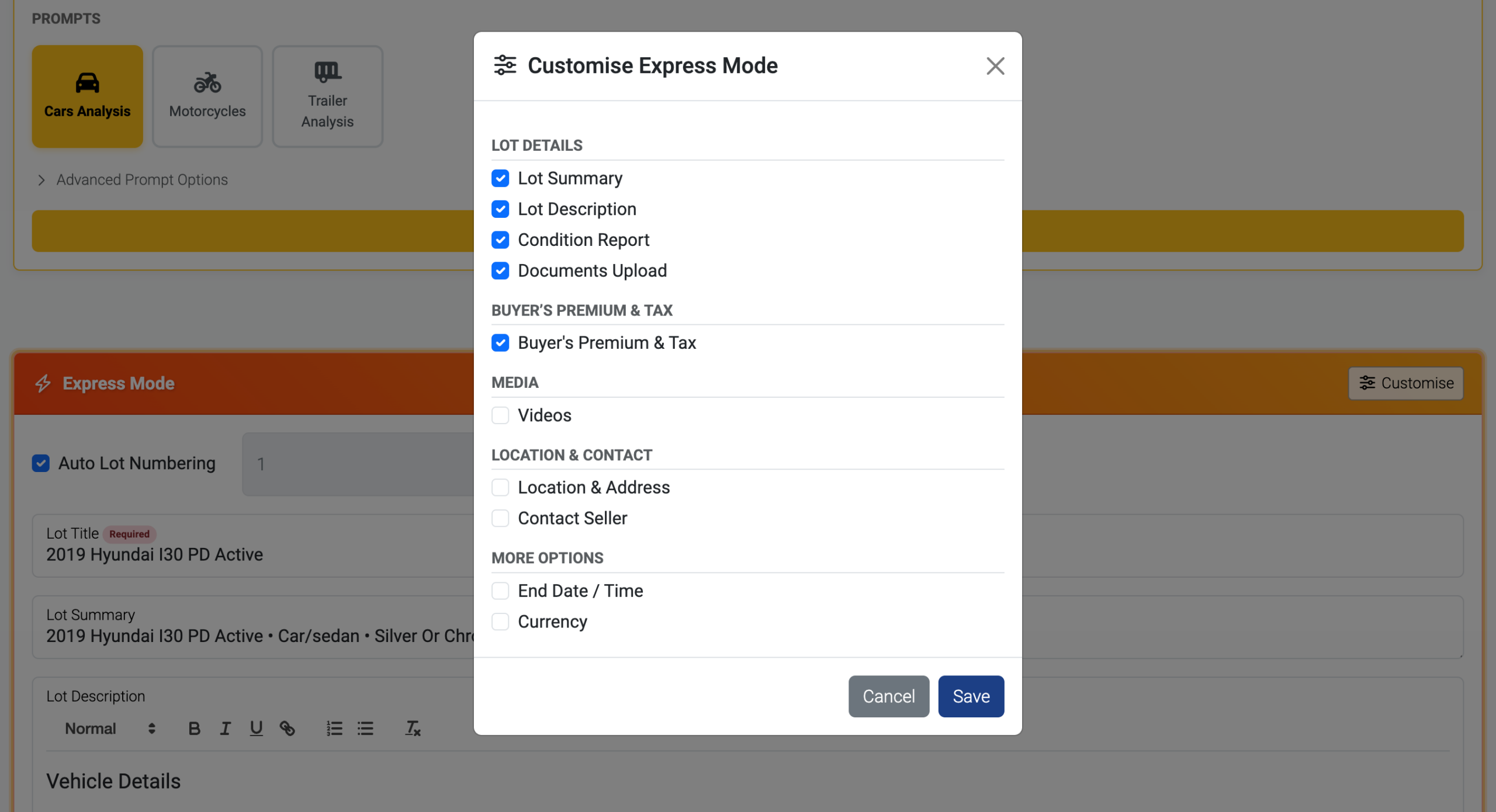 Tick or Untick individual optionsClick Save to apply your changes
- Tick or Untick individual options
- Click Save to apply your changes
The Buyers Premium and Tax fields will now display in Express Mode for all of your Items:
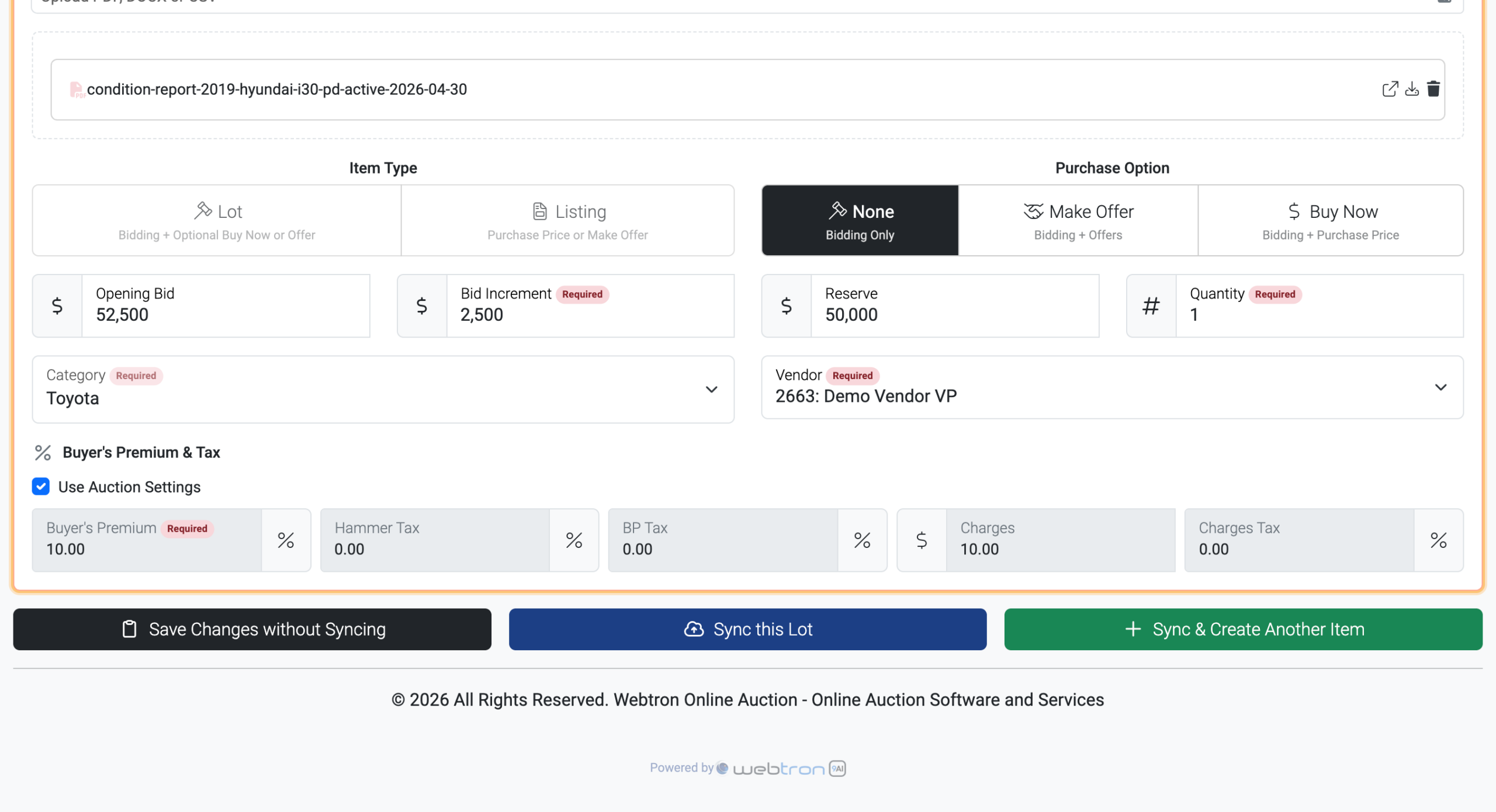 Options you tick will appear at the bottom of the Express Model section
- Options you tick will appear at the bottom of the Express Model section
Default Auction Details
During the setup of your VendorPlus, we’ll ask you to confirm what Default Auction Details you’d like set, these cover:
- Item Type for Timed Auctions – Lot or Listing
- Purchase Option
- Opening Bid
- Increment
- Vendor
- Category
- Bidding Extension
- Staggered End Times – Enabled and your preferred rate
If you need these updated, let us know.
Filtering the Item List
Each Auction’s Item List has it’s own dedicated Filter panel, enabling you to:
- Search by Keyword or Lot Number
- Show only the Items with or without Photos
- Filter by End Date (Marketplace only)
- Cap the number of items per page or Show All items in the Item List
- Filter by Status
If you’re on an older or less powerful device, we heartily recommend using the Items Per Page cap (50 or lower), and if you’re having trouble finding Items that do or don’t have photos, use the “with Photos” and “without Photos” options.