 Alec Young
 As part of the VendorPlus+ Consignments system, you can easily transfer Unsold Consignments either back to the Approved tab or to a new Auction.
Your Auction must be moved to Reconciliation status for your Item statuses to show as Sold and Unsold, and the Re-assign action will only appear on Consignments in Unsold status. Click here to open our Reconciling and Archiving a Timed Auction guide, or click here to open our Reconciling and Archiving a Webcast Auction guide.
Using the Re-assign tool in Manage Consignments
Step 1: Navigate to Consignment Manager > Submissions > Reconciled tab
Once you have Reconciled your Auction and logged into VendorPlus, in the Navigation menu at the top of your screen float your cursor over the Consignment Manager, then click Submissions:
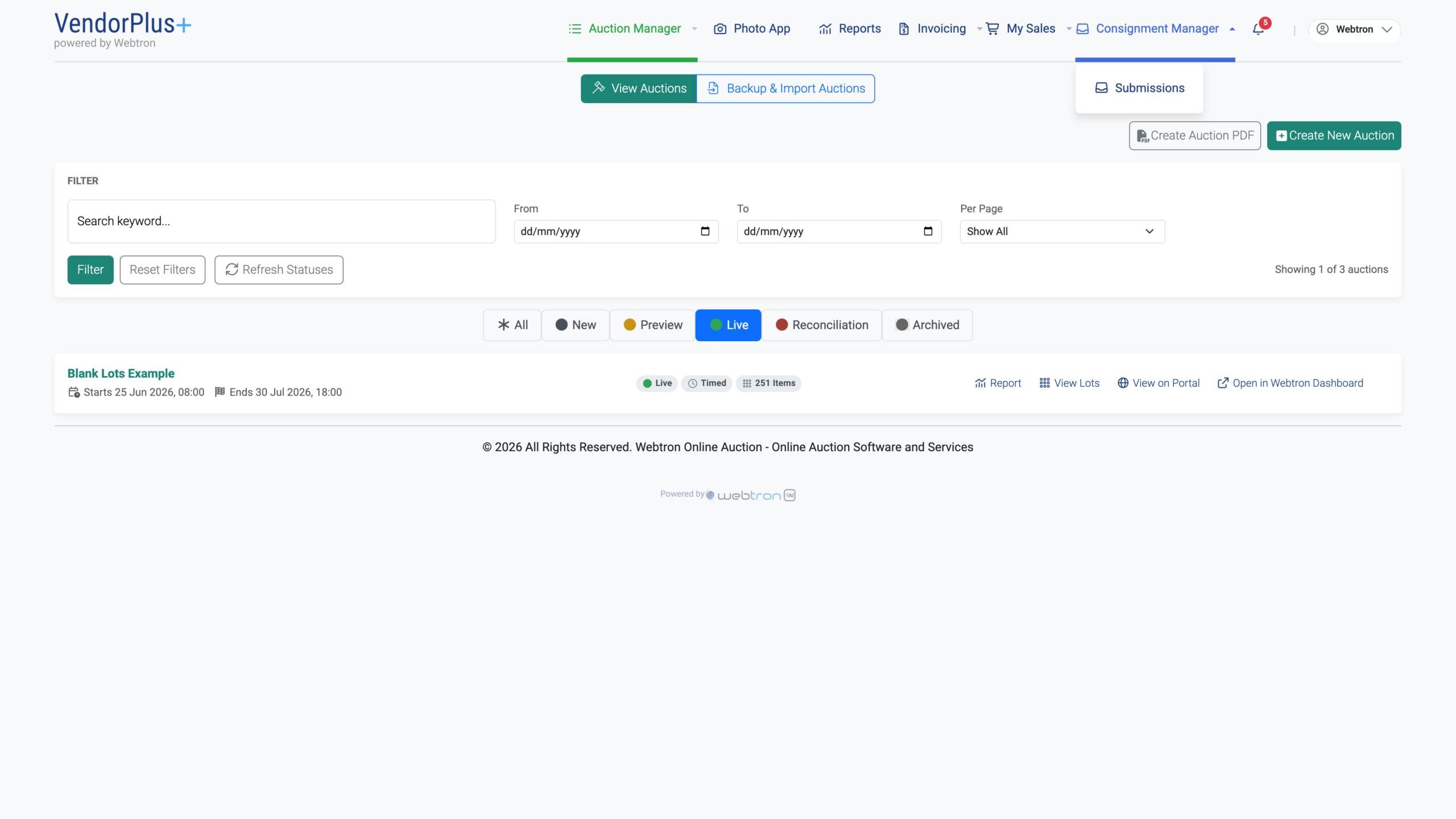 Float your cursor hereClick on Submissions to proceed
- Float your cursor here
- Click on Submissions to proceed
Once the Manage Consignments menu loads, switch to the Reconciled tab, then click the Re-assign button on a Consignment in Unsold status:
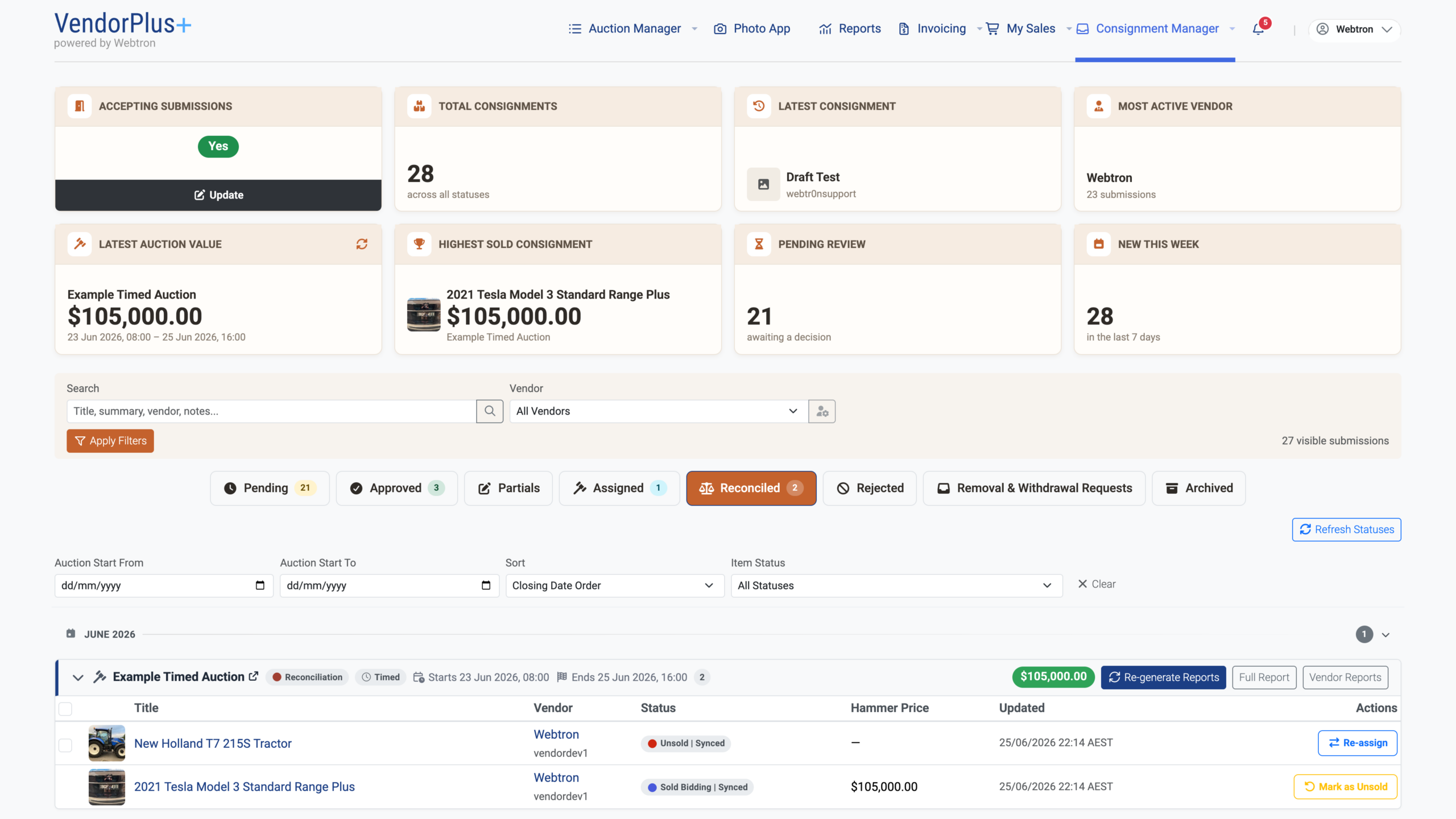 Click here to open the Reconciled tabClick Re-assign to proceed
- Click here to open the Reconciled tab
- Click Re-assign to proceed
Step 2A: Duplicate to another auction
You can use the Duplicate to another auction option to immediately transfer your Consignment to a new target Auction. Please note, for the Auction to appear in the “Target Auction” list, it must be present in VendorPlus and also in Live status.
Here are the steps on using the Duplicate to another auction option:
Select a Target Auction
After clicking Re-assign Selected, a panel will appear in the centre of your screen, with “Duplicate to another auction” being ticked by default.
Click Select Auction to open the Auction list and choose one of your Auctions, leave Link media ticked, then click the green Duplicate to Auction button:
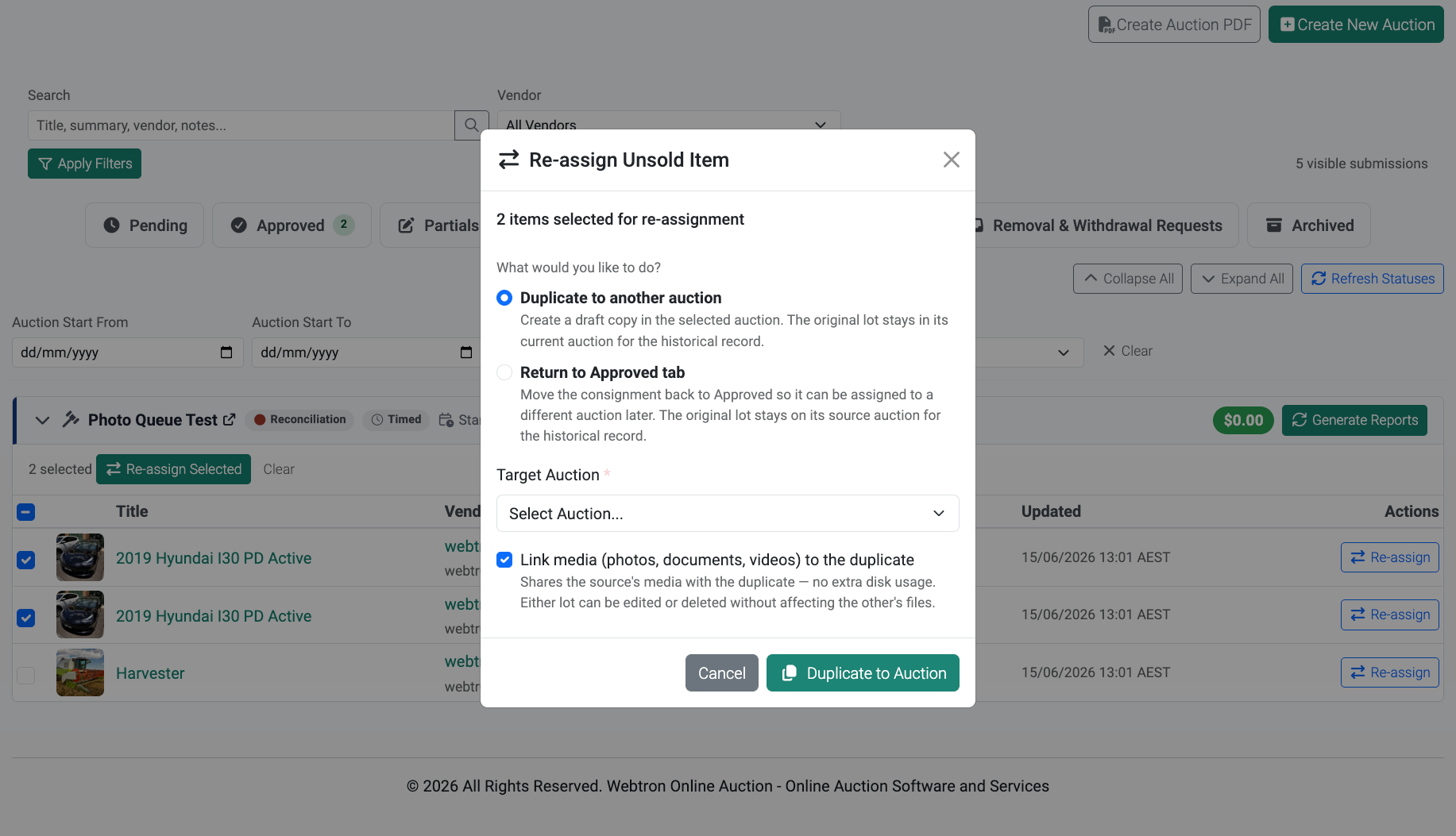 Leave this option tickedClick here to select an Auction in Live statusLeave this option tickedClick here to proceed
- Leave this option ticked
- Click here to select an Auction in Live status
- Leave this option ticked
- Click here to proceed
Step 2B: Return to Approved
Tick Return to Approved tab
If you haven’t created a new Auction yet or don’t want to Re-assign your Unsold Consignments to your current slate of Auctions, inside the Re-assign Unsold Item(s) panel, you can instead tick the Return to Approved tab option, then click Return to Approved:
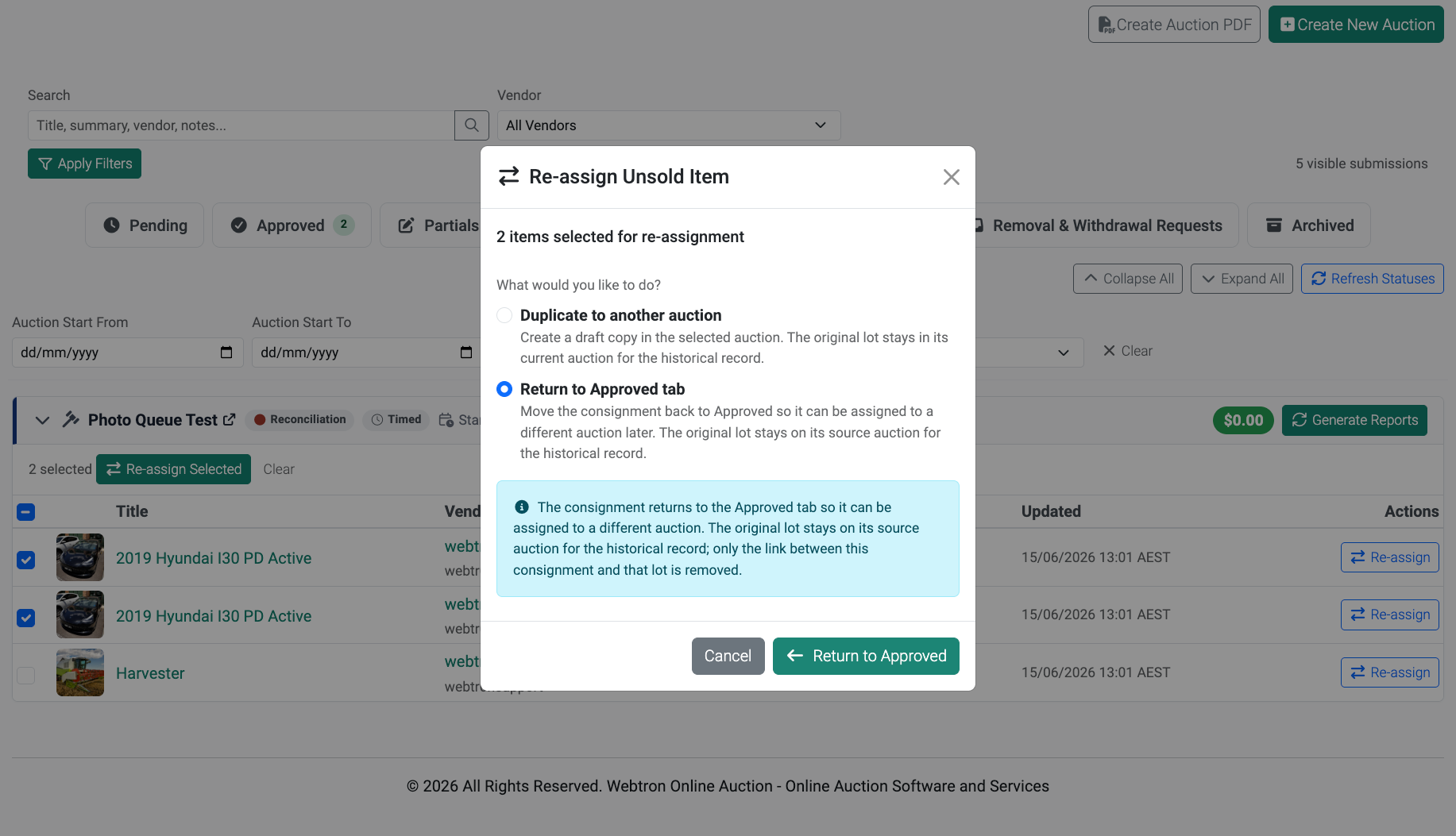 Tick this optionClick here to proceed
- Tick this option
- Click here to proceed
Step 3: Review and Sync your new Lots
Depending on the number of Consignments you are re-assigning, you’ll now see a progress and confirmation message, and your selected Consignments will be duplicated and displayed inside the Assigned tab, with the original Unsold Consignments now displaying a badge confirming which Auction they have been duplicated to:
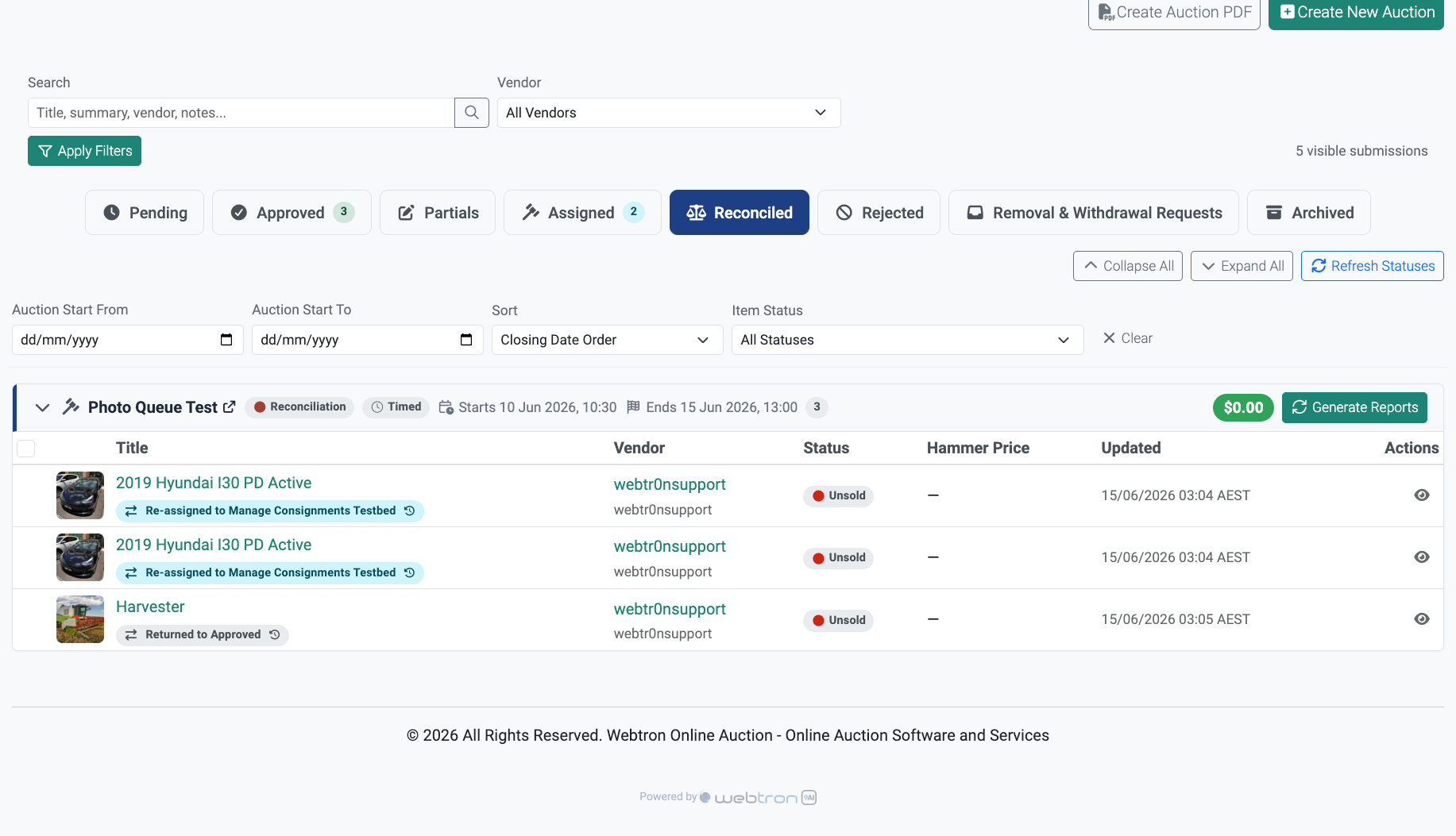 Re-assigned Consignments BadgeIf duplicated to a new Auction, your Unsold Consignments will display this blue badge.Re-assigned Consignments BadgeIf returned to the Approved tab, your Unsold Consignments will display this grey badge.
- Re-assigned Consignments BadgeIf duplicated to a new Auction, your Unsold Consignments will display this blue badge.
- Re-assigned Consignments BadgeIf returned to the Approved tab, your Unsold Consignments will display this grey badge.
You can now follow the normal workflow of checking and syncing your Items from the View Auctions > Item List for that Auction.
Auction Assignment History
You can keep track of which Auctions your Consignments have been assigned to via the Activity tab inside the Submission Details panel:
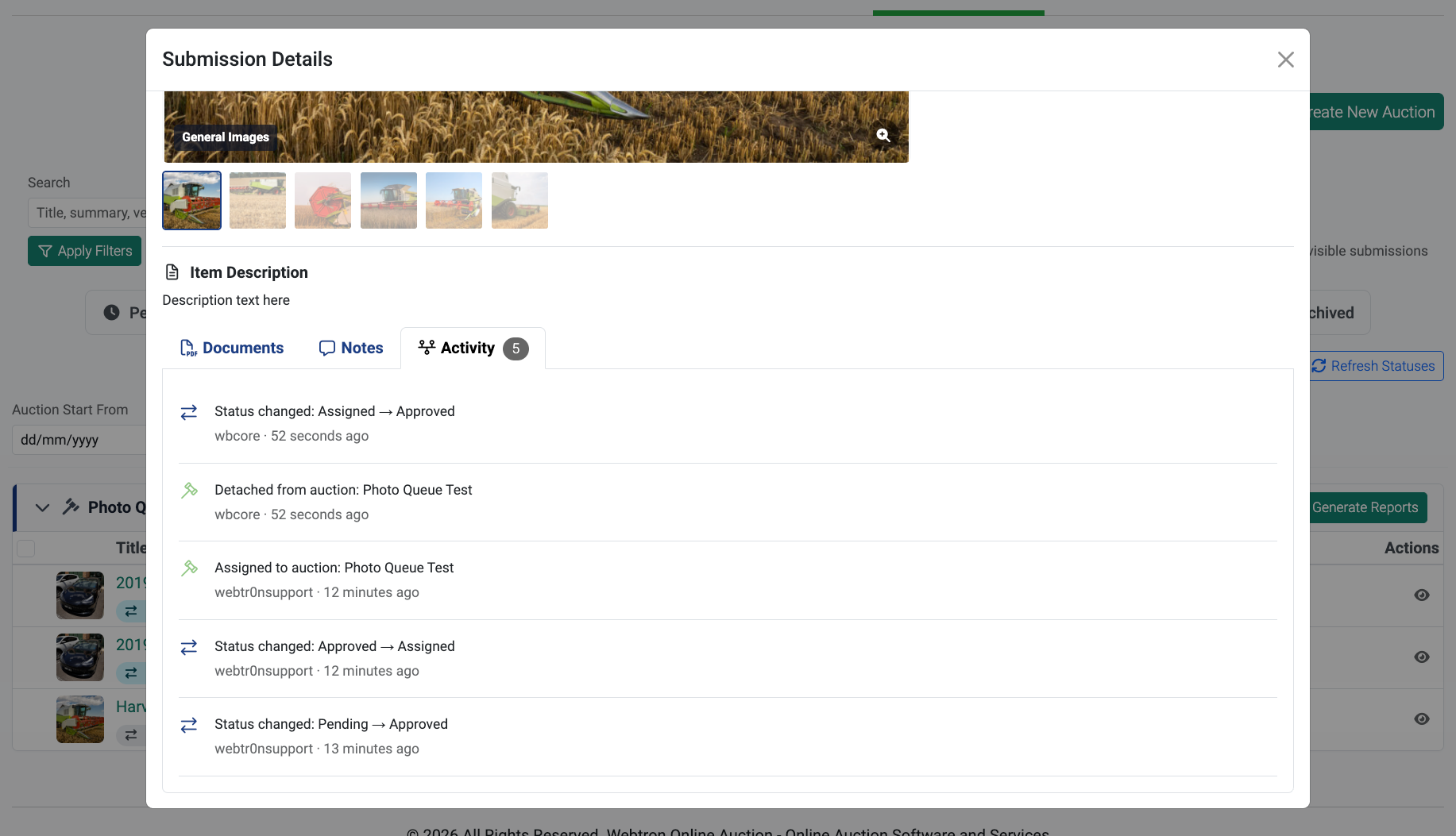 Returned to Approved tab
- Returned to Approved tab
What if the Item was sold but falls through post-Auction?
If circumstances arise that require a Sold consignment be re-assigned/re-opened, we have a dedicated guide covering this here.
FAQ – Re-assigning Unsold Consignments
1. You’ve re-assigned the submission to the wrong auction or wanted to return it to the Approved tab instead.
2. Your submission is in Sold status but the sale has fallen through.
In both circumstances you can, but there are two different ways to go about it. For scenario 1, click here to open our Pulling Consignments from an Auction guide. For scenario 2, click here to open our Marking Sold Consignments as Unsold guide.