 Alec Young
 The Vendor and Consignor Gateway
One of the biggest updates we’ve ever made to VendorPlus+ is here.
Long-requested and highly-anticipated, with VendorPlus+ Consignments you can now invite your Vendors and Consignors to join your VendorPlus, enabling them to submit their Items for auction.
Item Information and Condition Reports – tailored for your business
By default you can require your Vendors and Consignors provide up to 12 photos, a Title, Summary and Description, with or without assistance from the Webtron AI.
You can also require your Vendors and Consignors fill out and generate a Condition Report:
We have several pre-defined Condition Report templates, but they are also completely modular, allowing you to:
- Re-label existing fields
- Add custom fields
- Set each field type (text, number, dropdown, checkboxes, and more)
- Set individual fields as required or optional
- Conditional logic (fields appearing or hiding based on other fields and their options)
- And more!
Condition Reports are generated and automatically attached to Consignments, and later Items as downloadable PDFs available for your Bidders and Buyers.
Bidding + Buying and Auction Nomination options
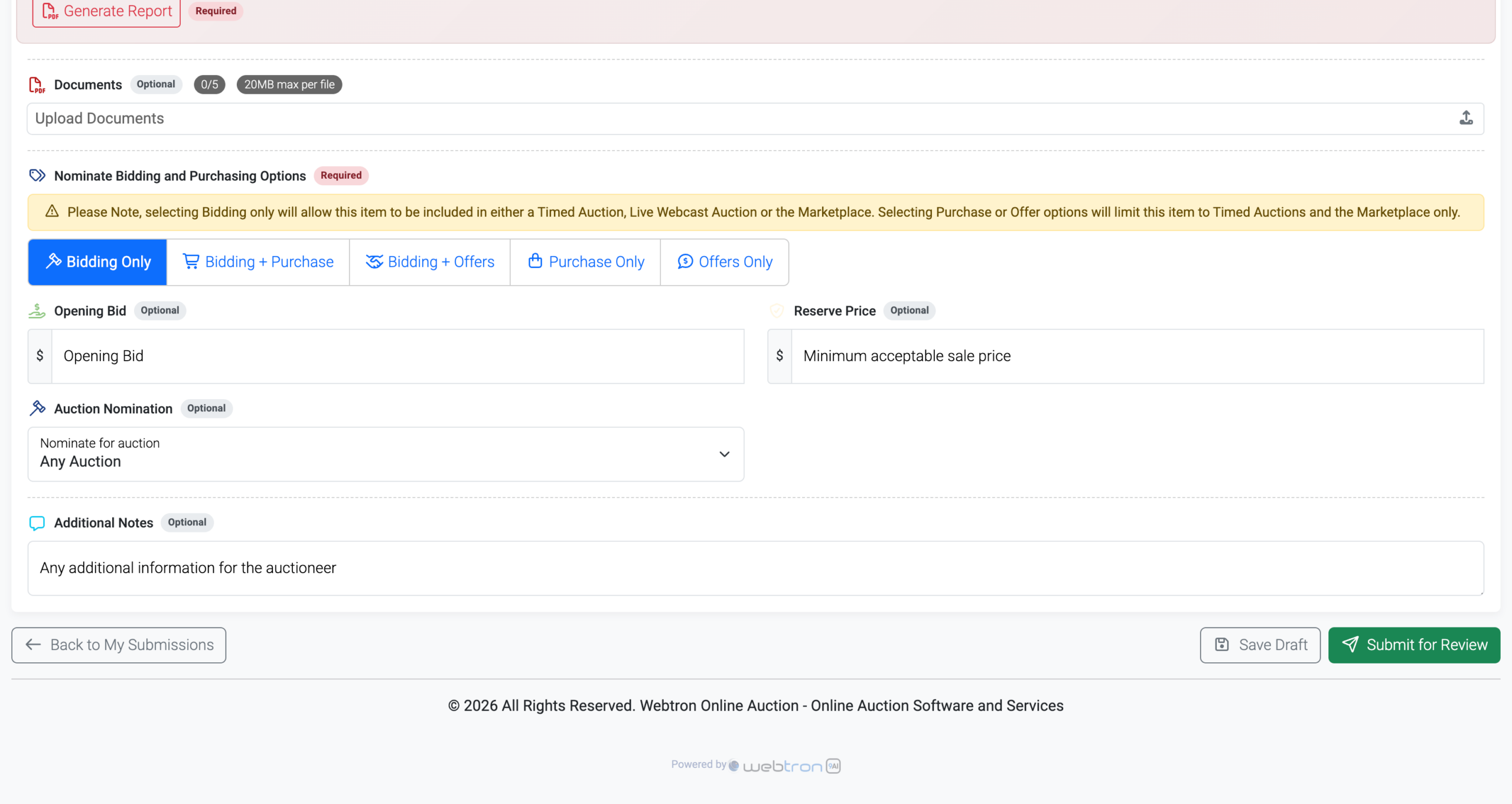
Vendors and Consignors can also nominate the Bidding and Buying options they want to be available on their items, such as:
- Bidding only
- Bidding + Buy Now
- Bidding + Offers
- Buy Now only
- Offers only
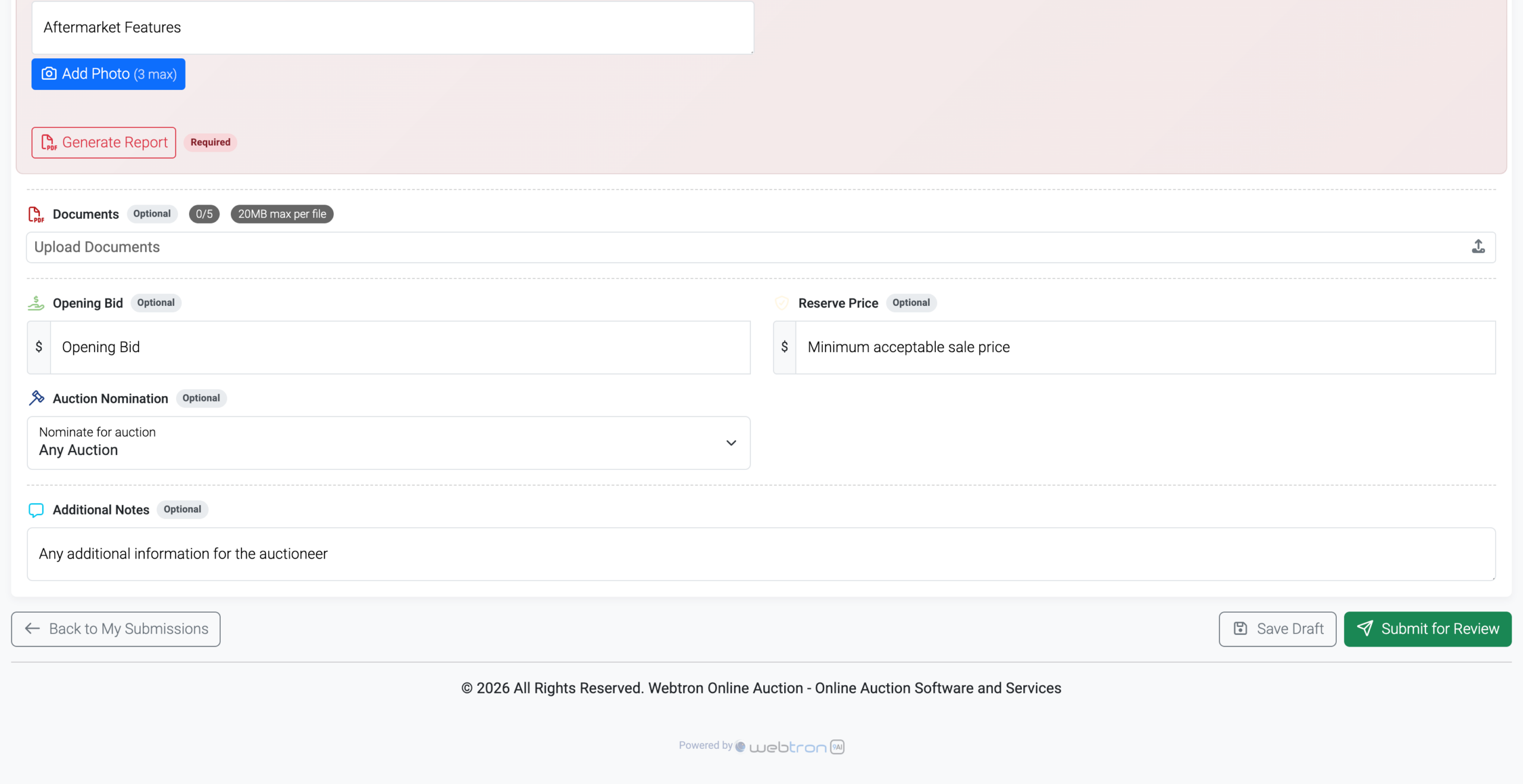
You can also limit which options are available for your Vendors and Consignors, for example if you only want them to be able to nominate an Opening Bid or just a Purchase Price:
You can also enable Nominate for Auction, allowing your Vendors and Consignors to choose which of your Auctions in Live status they would like their Items placed in:
Vendor Users and Vendor Profiles
Your Vendors and Consignors can be linked to a new or existing Vendor Profile created in the Webtron Dashboard, streamlining the Lotting process and creating a direct link between them and their Items.
Multiple Vendors and Consignors can be assigned to a single Vendor Profile.
By default, your Vendor User seats are capped at 50, meaning you can invite up to 50 Vendors and Consignors to join your VendorPlus+, and request more seats if required. Raising the seat cap is subject to approval by Webtron.
Accept or Reject – Site Managers and Auctioneers
Your team members with the Site Manager or Auctioneer roles can review submissions via the new Manage Consignments menu in the Auction Manager:
New submissions land in Pending status, from which they can be Approved and then Assigned to an Auction, or Rejected.
Corrections, Decisions and Revisions – Notifications and Auction Assignments
If your Vendors or Consignors make a mistake or leave something out of their submission, they can make one revision pass and you’ll be able to clearly see what they updated and when:
Your Site Managers and Auctioneers can also make revisions on behalf of your Vendors and Consignors.
Your Site Managers and Auctioneers will receive email notifications whenever:
- Vendors and Consignors submit new consignments
- Vendors and Consignors submit revisions for their consignments
- Vendors and Consignors submit removal or withdrawal requests for their consignments
Your Vendors and Consignors will receive email notifications when:
- The Consignments are accepted
- Their Consignments are rejected (with the reason for rejection specified)
- Their Removal or Withdrawal request is accepted or rejected
- Their account is suspended or unsuspended
Post-Auction Actions and Reports
Re-assigning Unsold Consignments
Once an Auction containing consignments is moved to Reconciliation status, your Site Managers and Auctioneers will be able to see what sold and what didn’t, with Unsold Consignments featuring a special Re-assign button, allowing them to be returned to Approved status or re-assigned to a different Auction, all in as little as 3 clicks.
Auction and Vendor Reports
Your Site Managers and Auctioneers will have access to the existing Auction Report, and also brand new Vendor Report Cards:
Changelog – VendorPlus+ Consignments
Whenever we make updates to the Consignments feature, we’ll add new entries to the Changelog here:
v1.0.7
-
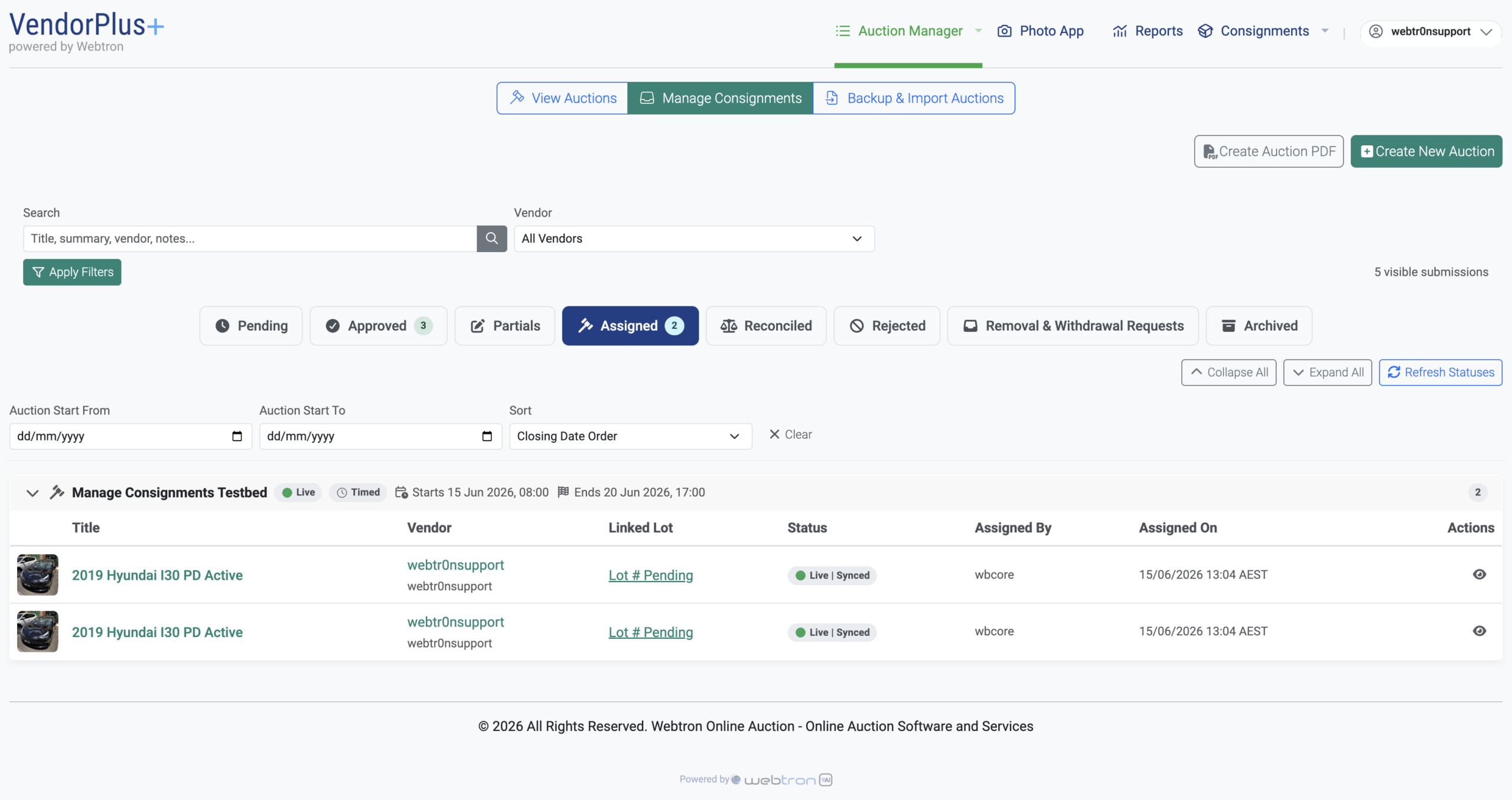
Added Pull from Auction – Manage Consignments We’ve added a new workflow action in the Assigned tab allowing your Site Managers and Auctioneers to pull a consignment out of it’s Assigned auction and to one of 3 statuses: – Approved – Rejected – Archived Pull from Auction allows you to also inform the Vendor using a toggle-able Notify Vendor option for the Approved and Archived options.
-
Added Re-push Data action – Manage Consignments In the scenario that a destructive edit is made to a linked lot, such as deleting a Condition Report PDF or Description content, you can now use the Re-push Data action in the Assigned tab to re-align the Linked Lot with it’s Consignment’s data.
-
Changed Show Archived – My Consignments Your Vendors can now toggle a filter to view their submissions that are currently in Archived status, with a countdown displaying the remaining days before auto-deletion.
-
Changed Mark as Unsold permissions – Manage Consignments The Mark as Unsold action added in v1.0.5 has been further restricted and can now only be performed by users with the Site Manager role.
-
Upgraded Bidding & Purchase Options shortcut – Manage Consignments We’ve mirrored the Bidding & Purchase Options from the Pending tab to the Approved and Assigned tabs, and when in Assigned, the individual Bidding & Purchase Option badges will act as a shortcut link to the Bidding & Pricing section in the Edit Item menu.
-
Fixed Incorrect Actions display format – My Consignments Switching filters would result in the Actions row of buttons reverting to the old style Actions dropdown, this has now been fixed.
-
Fixed Per-Tab Filters – Manage Consignments An unintended formatting change resulted in the Apply button disappearing from the per-tab filters in Manage Consignments, this has now been fixed and the filters have been given a mild overhaul to bring them in line with the Webtron Dashboard.
-
Fixed Action button visual tuning – Manage Consignments We’ve updated the colouring of actions such as Reconsider and Mark as Unsold from yellow to red for greater visual clarity, we welcome any and all feedback regarding UI readability and accessibility!
-
Deprecated Auto-run AI Analysis – Submit Consignment Auto-run AI Analysis will be phased out in the v1.1.0 update in favour of a manual Run Analysis action.
v1.0.6
-
Added Submission Templates – Submit Consignments We’ve extended VendorPlus Consignments’ customisability to an even higher level with Item Templates, allowing you to tailor the fields and options available in the Submit Consignment form on a per-Item Type/Category basis, with a fallback General option.
-
Added Notifications panel As part of our Notifications rebuild, we’ve added a new Notifications panel at the top of VendorPlus+ that will mirror the current Email Notifications for Consignments. Clicking a notification will take you straight to the relevant consignment.
-
Added Block Resubmissions – Manage Consignments While rejecting a submission, you now have the option to Block Resubmission, this will disable the Resubmit button for that consignment and notify the user that your decision to reject is final.
-
Added Request History – Manage Consignments We’ve added a new Request History panel to the Removal & Withdrawal Requests tab that will log all requests actioned by your Site Managers & Auctioneers, giving you full visibility of your request history.
-
Added Bulk Submit – My Consignments We’ve added a new way for your Vendors and Consignors to submit their consignment en-masse. Bulk Submit offers them two options: 1. Bulk Submit – This panel will display a compact version of the Submit Consignment form and a repeater field, allowing your Vendors to fill in the details for multiple submissions, simultaneously. 2. Bulk Import – Your Vendors can now download a CSV spreadsheet template from the Bulk Submit menu, fill out their details via Excel or Google Sheets, and then bulk upload their Consignments.
-
Added Per-Field Rejection Details – Manage Consignments As part of the Reason for Rejection workflow, you can now highlight which fields contributed to your decision to reject a submission, as well as provide extra details on a per-field basis, i.e. instructions to the Vendor on what details to add or fix.
-
Added Per-Field Revision Acceptance and Rejection – Manage Consignments As part of the Revisions workflow, we’ve added the option to accept and reject individual fields as part of the Vendor’s revision request, making it easier for the Vendor to update just the rejected fields, rather than having to resubmit all revisions again.
-
Added Submission Status section – VendorPlus Consignments We’ve added a new Submission Status section at the top-right of the Submission Details panel that will provide both your Site Managers/Auctioneers and Vendors with clearer messaging regarding the current status of that submission. This section will also house the new Per-Field Rejection details.
-
Added Mark as Unsold – Manage Consignments To facilitate post-auction buyer withdrawals/failed settlements, we have created a new Mark as Unsold workflow. Mark as Unsold will enable Site Managers and Auctioneers to revert a Consignment from Sold to Unsold status, enabling the Re-assign option and preserving the post-auction Status for both your business and the Vendor (the Consignment will revert to Unsold in the Vendor’s My Consignments menu). Please note, this feature is currently in early deployment and the requirements for Mark as Unsold may change in a future update.
-
Added Auction History tab – Submission Details panel We’ve added a new Auction History tab to the Submission Details panel, this will display the Assigned and Re-assigned Auction History and is available for both Site Managers/Auctioneers and Vendors. Our aim with this new tab is to make the Re-assignment history of a consignment clearer for both your team and your Vendors. These details are still available in the Activity tab, but the Auction History tab won’t list which team member assigned/re-assigned the consignment.
-
Changed Revisions Cap – Manage Consignments + Submit Consignment We’ve updated the Revisions Cap so that it can be increased from the default (1) and also added a counter to the Submit Revisions button so that you Vendor has greater visibility of the revisions limit for each submission.
-
Changed Organised by Month – Manage Consignments We’ve updated the Assigned and Reconciled tabs in Manage Consignments to now display Auctions grouped by Month, making it easier for you to revisit previous Auctions and see just this month’s Auctions from the get-go.
-
Changed Action buttons accessibility – Manage Consignments Based on user feedback, we’ve updated the Action buttons throughout the Manage Consignments tabs to display their full label, their purposes are now clearer and each button is easier to click/tap.
-
Changed Email Notification Grouping – VendorPlus+ Consignments Bulk Approvals and Bulk Rejections will now be grouped into a single email for the Vendor, rather than individual emails for each consignment.
-
Changed Action buttons – Submission List update – My Consignments We have moved the available Actions for a submission out of the Actions dropdown, they will now display as a row of buttons at the bottom of each submission card. This change was based on mobile user feedback and to give users maximum visibility of contextual actions.
-
Changed Submission Status update – My Consignments As part of the My Consignments visual overhaul, we’ve updated several of the Submission Status badges: – The “In Auction” badge has been reworded to “Assigned to Auction” – This badge appears after the submission has been assigned to an Auction but has not been synced to the Webtron Dashboard yet. – The “Live” badge has been expanded into 4 separate contextual badges: – Live – Catalogue Public – Live – Open for Bidding + {Purchase Option} – Live – Open for Pre-Bidding – Live – Queued for the Ring
-
Changed Dates, Times and Timezones – VendorPlus Consignments We’ve upgraded and updated the Date and Time displays for many of the VendorPlus Consignments menus and panels, Vendors now have clearer details of when they created and submitted their consignments, and Site Managers/Auctioneers can see clearer dates and times in the Activity tab. All Date and Time elements are now adaptive to the user’s browser timezone, fully localising times for each user.
-
Overhauled Review Revisions – Manage Consignments We’ve given Review Revisions a complete rebuild and made two major upgrades: 1. Full per-field details – the Review Revisions panel will now display the full details for each field the Vendor has changed, as well as highlight removals and additions. 2. Decline Revisions – You can now decline revisions submitted by a Vendor and they will receive a notification confirming your decision, giving them the opportunity to resubmit their revisions.
-
Fixed Revision History – Submission Details panel The Revision History tab inside the Submission Details panel will mirror the changes we’ve made to the Review Revisions panel, giving you full visibility over the revision history for each submission.
-
Fixed Withdrawal Requests for Sold Submissions – My Consignments We’ve patched an unintended workflow that allowed Vendors to submit Withdrawal requests for submissions that have been marked as Sold. Withdrawal Requests can now only be submitted for consignments in Approved, In-Auction and Unsold status.
-
Fixed Skip Orientation – My Consignments We’ve been keeping tabs on the completion rate for Vendor Orientation and have added a Skip Orientation option, allowing your new Vendors to skip and hide the orientation panel.
-
Fixed Invalid Workflow – Item List + Consignments As part of the Mark as Unsold update, we’ve disabled the Transfer to Auction and Duplicate options for items with a linked consignment. If you try to transfer or duplicate an item with a linked consignment, a new warning panel will display instructing you to use either the Re-assign or Mark as Unsold options inside the Manage Consignments menu instead.
-
Fixed Incorrect Fields – Submit Consignment We’ve fixed an error that was leading the Purchase Price and Minimum Acceptable Offer fields to appear whilst they were disabled in the settings.
-
Fixed Draft Status – Submit Consignments When re-opening a submission in Draft status, a small subset of users were seeing the Revision Mode submission form instead of the Edit Mode, forcing them to submit the consignment. This has been fixed and clearer messaging has been added to the Edit Mode and Revision Mode banners.
-
Fixed Manage Consignments Refresh A change to the Linked Lot column had an unintended side effect that, in some cases, would refresh the Manage Consignments menu. This has now been fixed and the Linked Lot column will update without refresh the menu.
v1.0.4
-
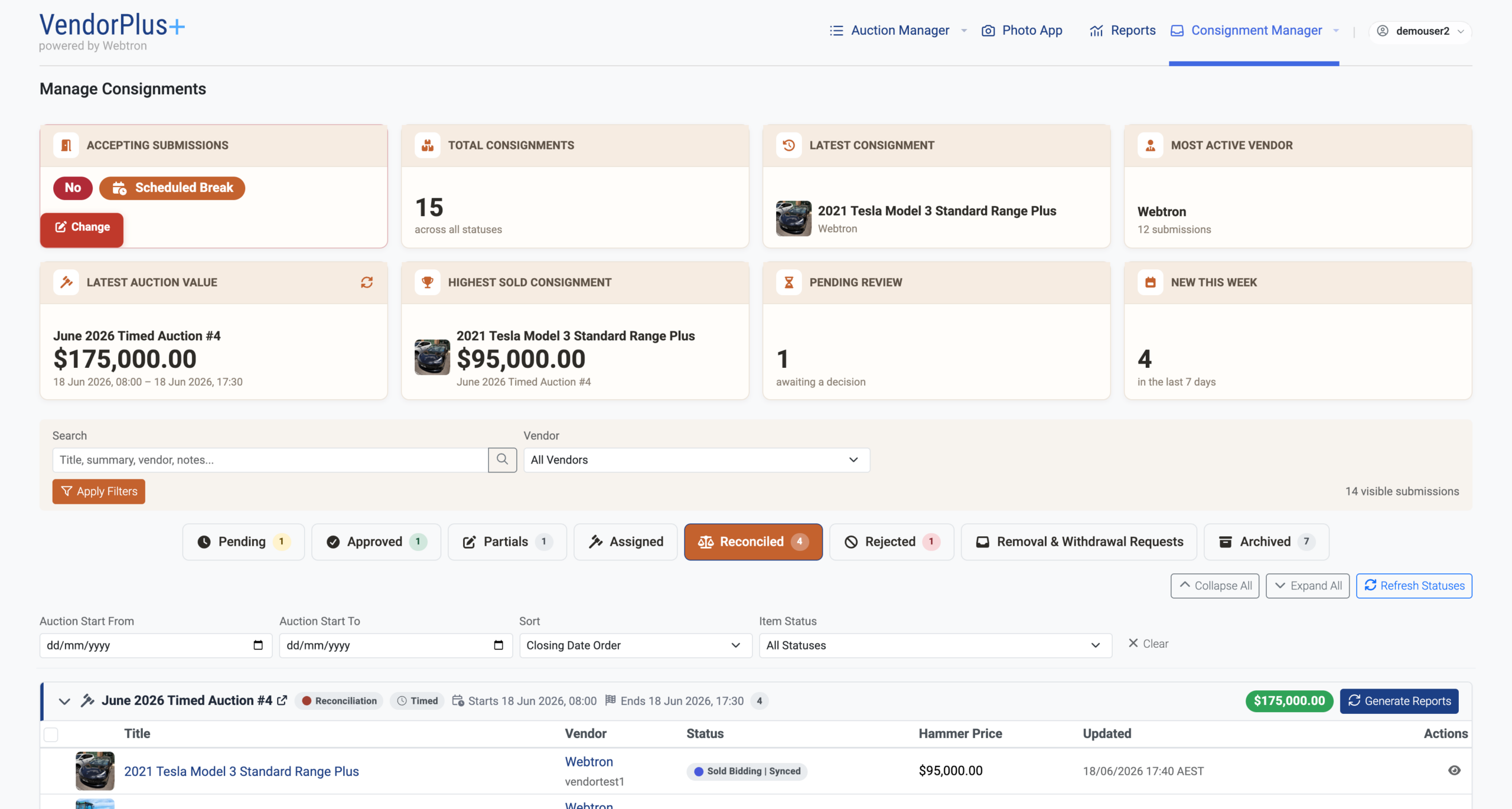
Overhauled New Consignments Manager menu Manage Consignments has been moved out of the Auction Manager and into it’s own dedicated menu, Consignments Manager > Submissions.
 Click to zoom
-
Added Manage Consignments Statusboard The Manage Consignments menu will now display an 8-card grid of useful information, from your current Total Consignments to the Highest Sold Consignment.
Click to zoom
-
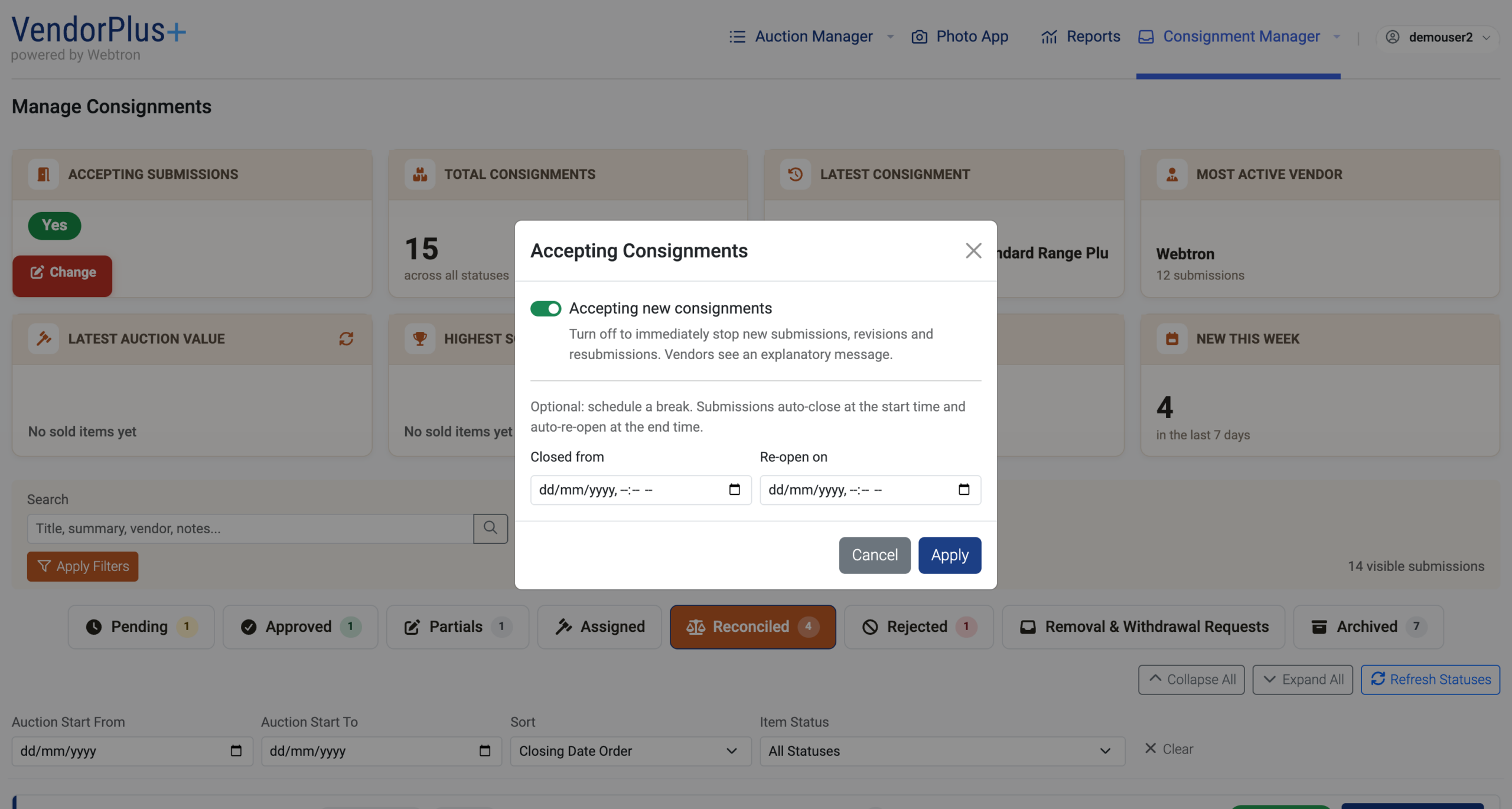
Added Accepting Submissions Toggle You can now disable the ability for your Vendors and Consignors to submit new consignments, either manually or for a set period of time. Consignments in Pending status received before the cut-off will still offer the Submit Revisions option for that Vendor/Consignor.
 Click to zoom
-
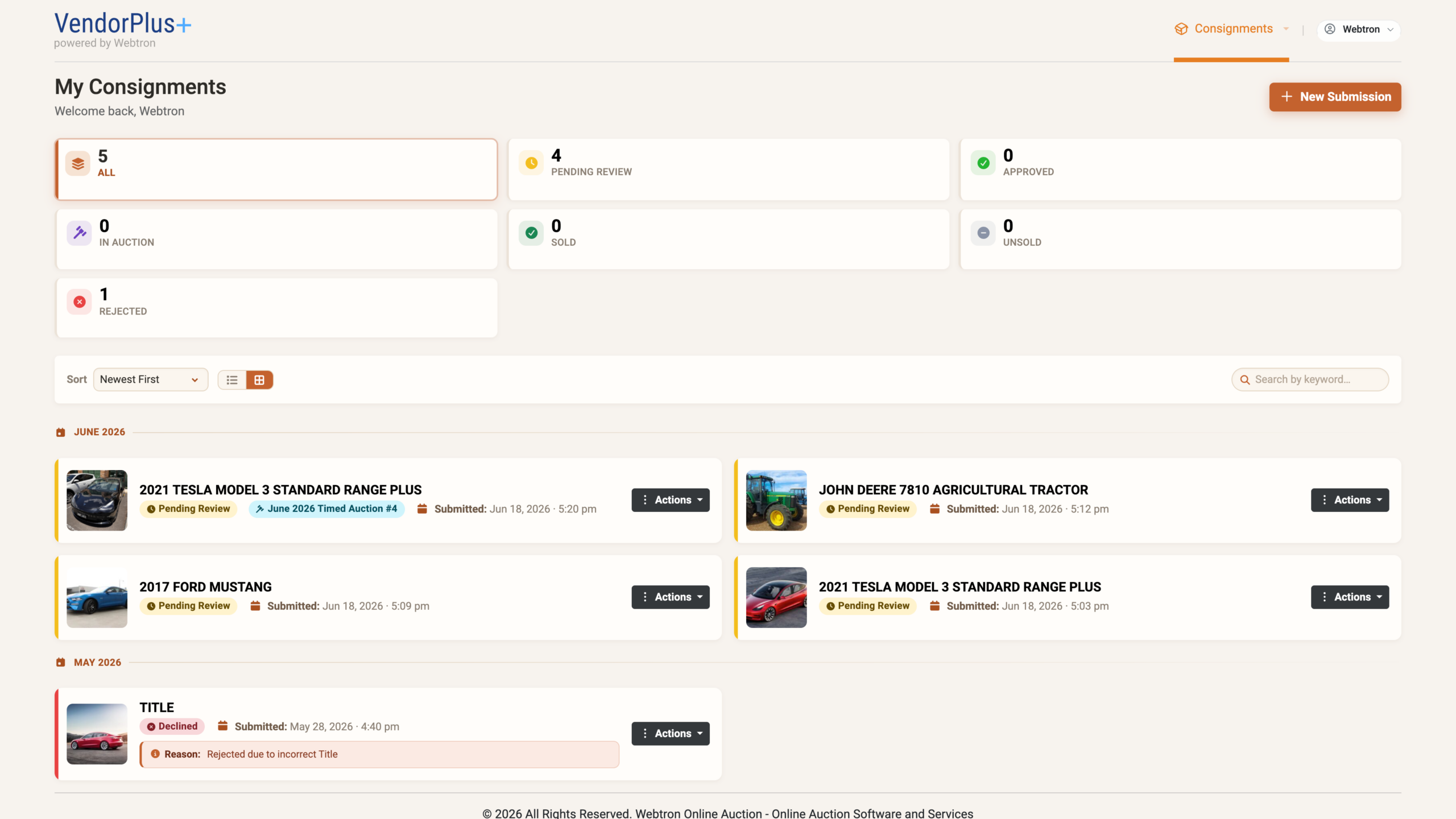
Overhauled My Consignments Menu Based on user feedback, we’ve given the My Consignments menu a visual upgrade, making it clearer and easier for your Vendors and Consignors to view and manage their existing submissions.
 Click to zoom
-
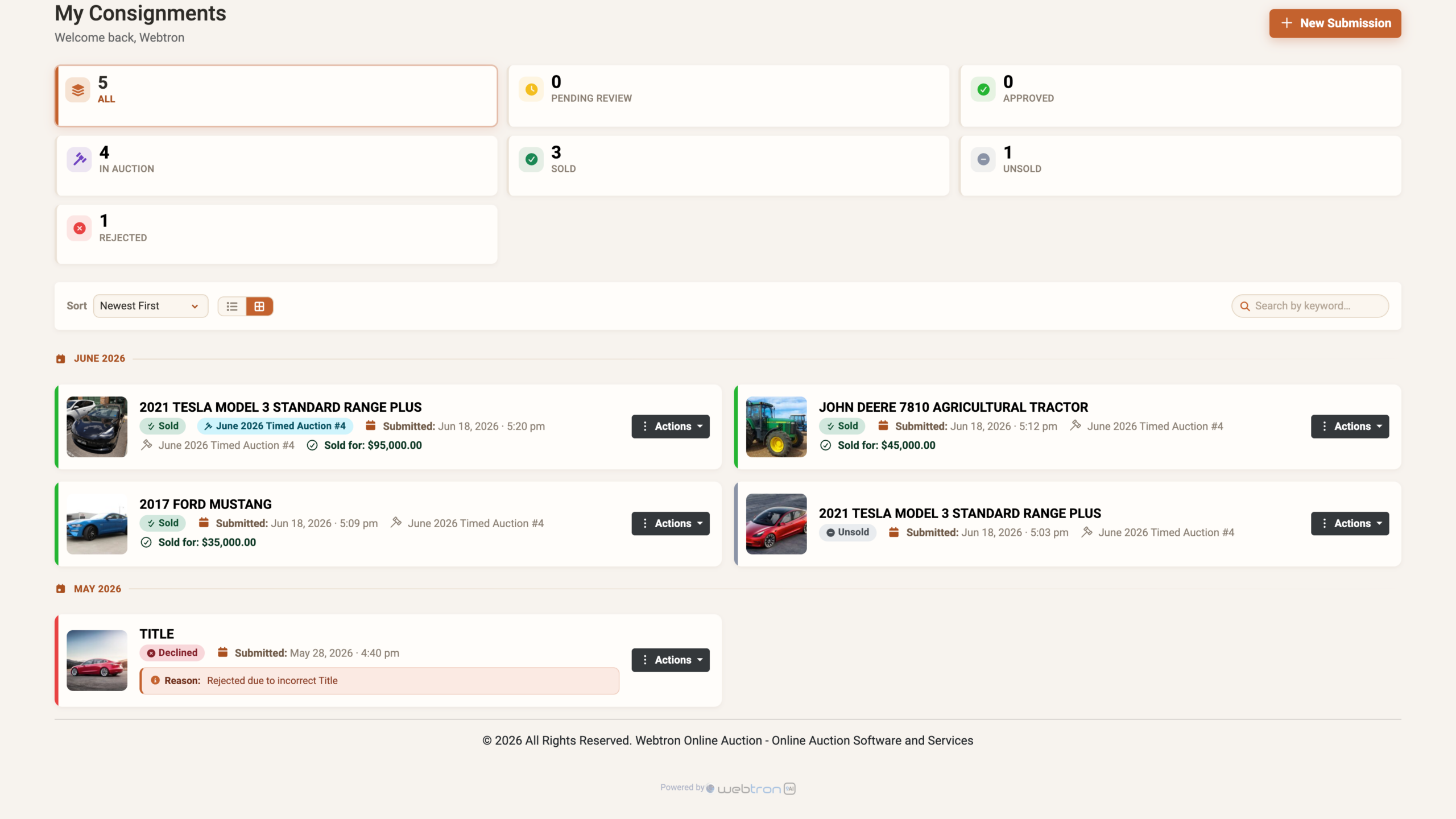
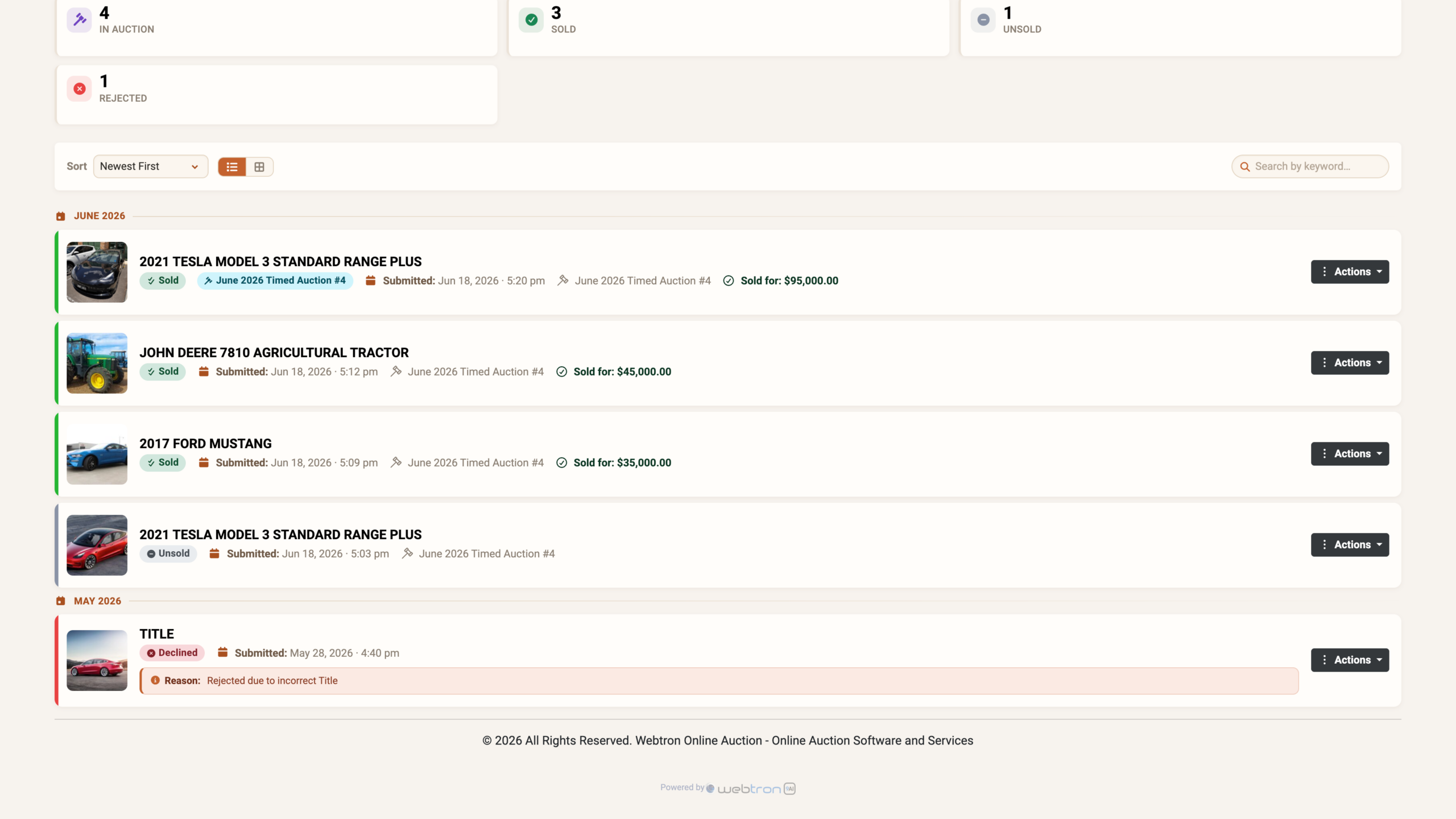
Added My Consignments – Grid and List View As part of the My Consignments visual overhaul, we’ve added a popular feature from the Portal, Grid and List View. Grid View is the new default option, and your Desktop and Tablet users can easily toggle between the two views.
 Click to zoom
-
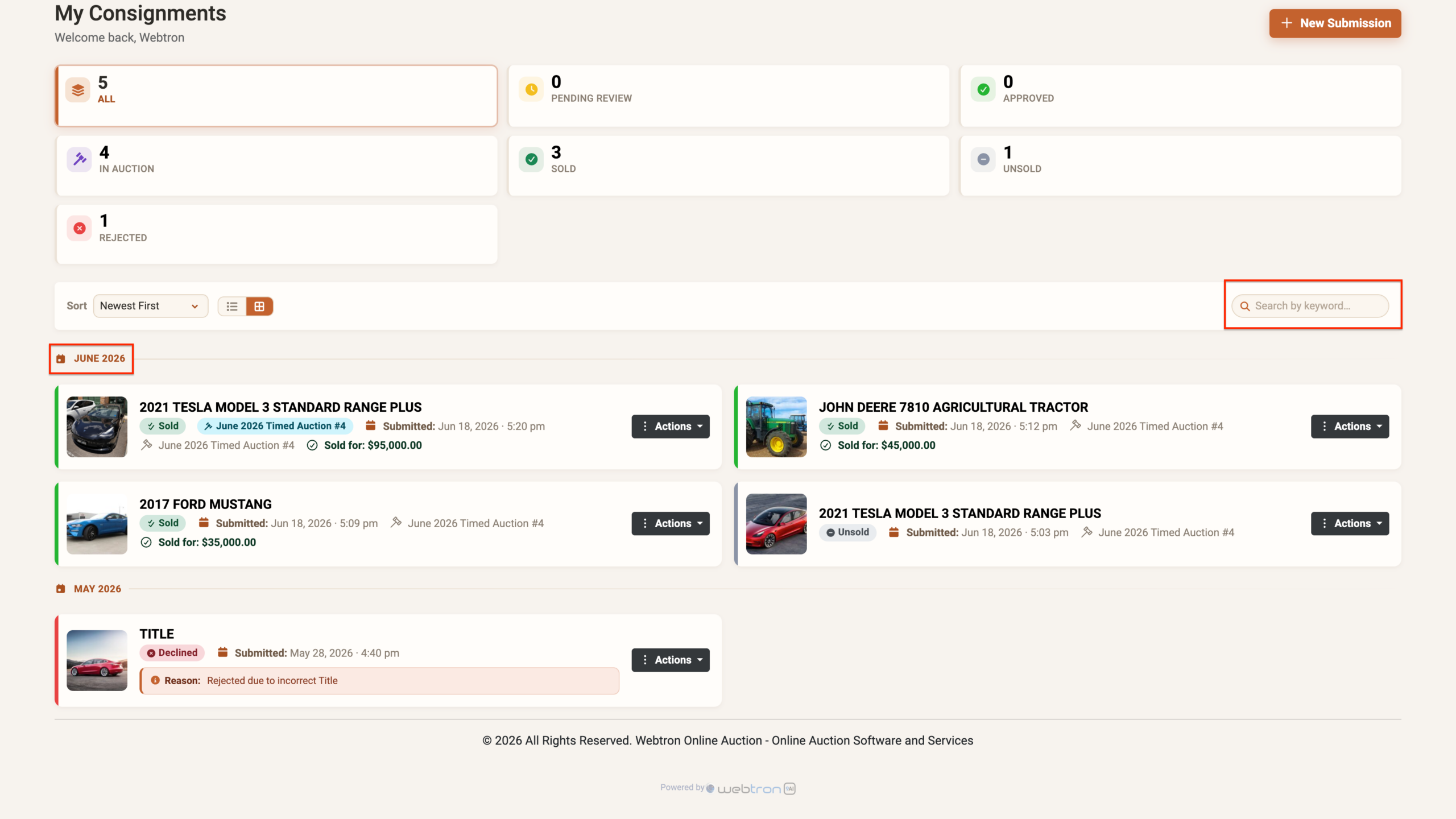
Added My Consignments – Search and Month As part of the visual overhaul, we’ve added a new Search by Keyword field and update the submission list to organise and display submissions by month.
 Click to zoom
-
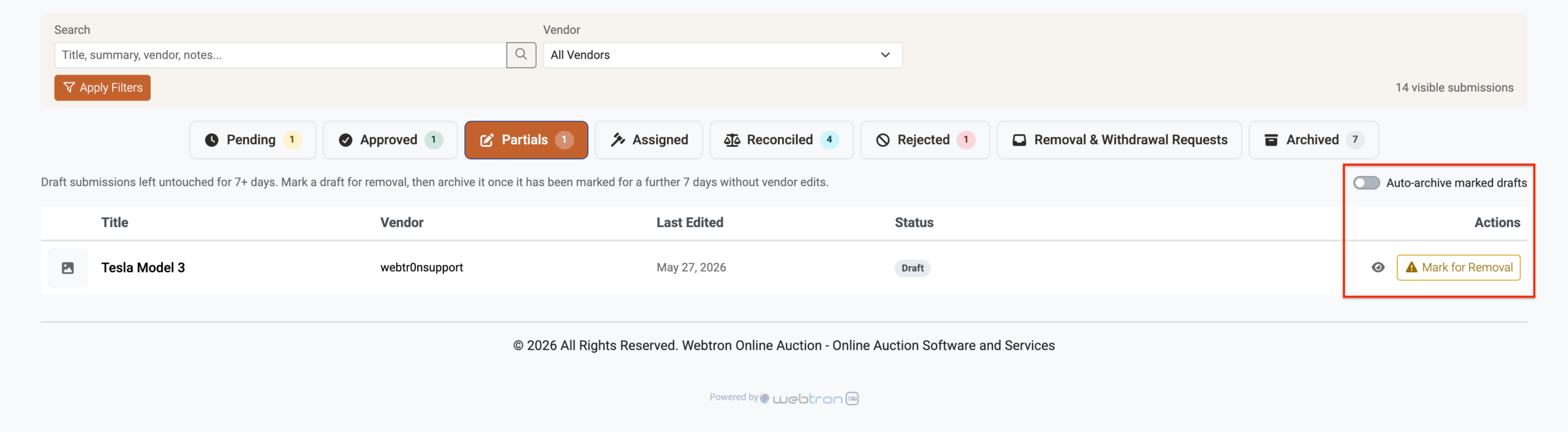
Overhauled Manage Consignments – Partials tab The Partials tab will now display draft consignments that have not been edited in 7 days. These abandoned drafts can be Marked for Removal, and then archived after 7 days. Vendors can remove the Marked for Removal status by editing the consignment.
 Click to zoom
-
Added Submit Consignment – Item Summary templates We’ve updated the Item Summary field and it’s formatting can now be toggled between several templates: Location (default), Free Text, Estimate and more.
-
Added Submit Consignment – Bidding & Buying Options The full suite of Item Types and Purchase Options are now available for the Submit Consignment form on a toggle-on, toggle-off basis. The default configuration remains Reserve Price only.
 Click to zoom
-
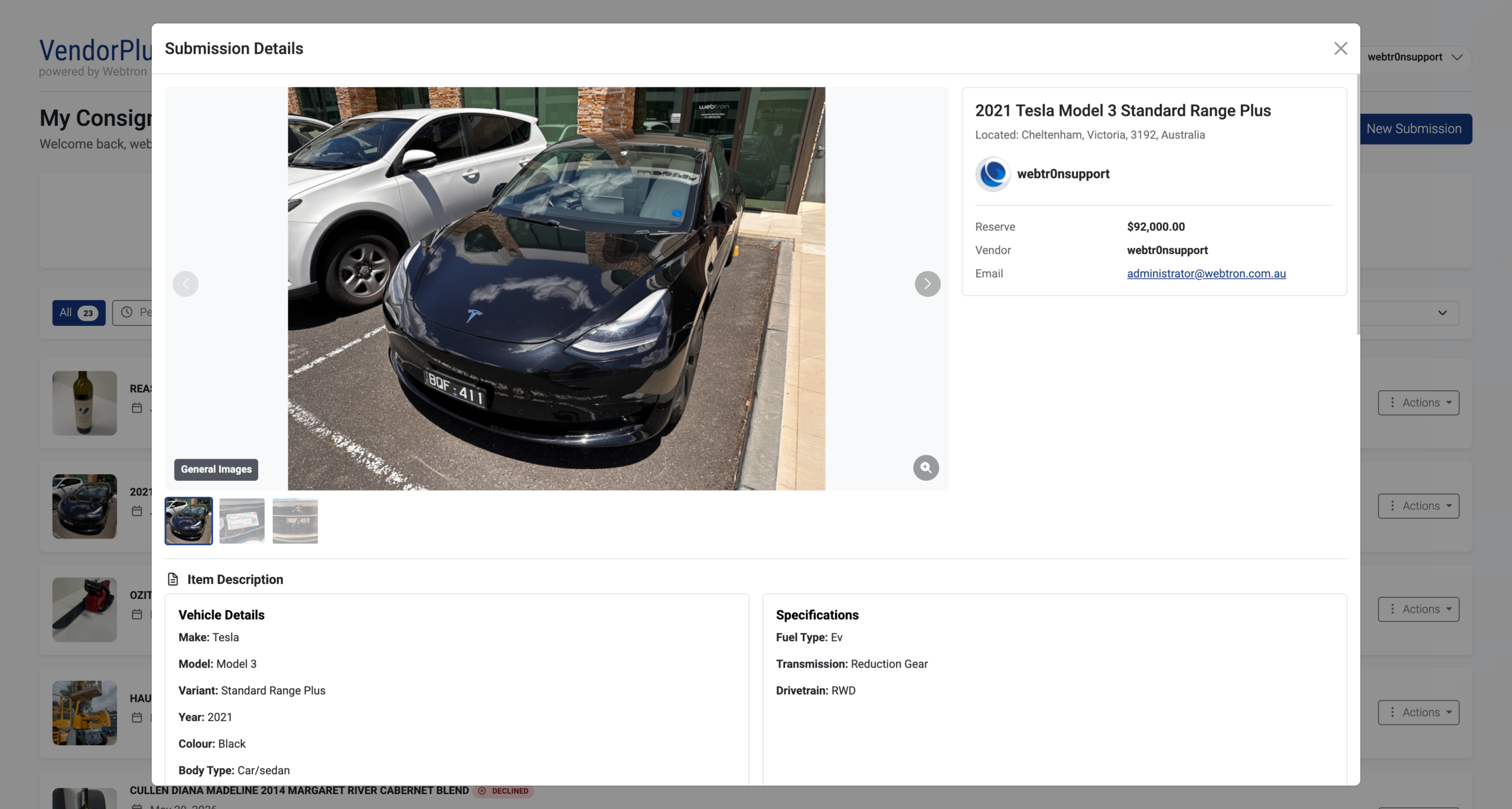
Changed Submission Details panel – Bidding & Buying Details (Submission Details panel) Reserve Price and other Consignment bidding and buying figures will now display in a dedicated Bidding & Buying Details section, just below the Vendor Information section.

 Click to zoom
-
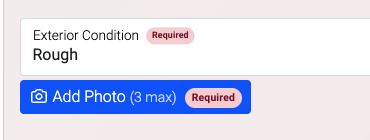
Changed Conditional Logic and Required Fields Overhaul (Condition Reports) We’ve completely rewritten the Conditional Logic and Required Fields functions for the Condition Reports, per-field Upload Photos can now be marked as required based on parent field choices.
 Click to zoom
-
Fixed Simultaneous Photo Uploads The Upload Photo fields will now chunk uploads in groups of 3 instead of 1 photo at a time. Paired with server-side and front-end optimisations, photos will now upload on average 5-6x faster.
-
Fixed Submission Details panel – Activity tab visibility The Activity tab was briefly showing for Vendor/Consignor users, this has now been hidden.
-
Fixed View Lot (My Consignments) The View Lot button for assigned Consignments was incorrectly linking back to the My Consignments menu, this has been hidden while the feature is re-evaluated.
-
Fixed Remove Nominations (Manage Consignments) In rare cases, disabling a nominated Opening Bid or Reserve Price would result in the amount still be included in the assigned Item, this has now been fixed.
Would you like to know more?
VendorPlus+ Consignments is currently invite-only. As of June 2026, general release is currently TBC.
Fill out the form below to register your interest and join the waiting list for VendorPlus+ Consignments.
We are currently rolling out VendorPlus+ Consignments on an invite-only basis and we are prioritising registrations that can assign a dedicated staff member for handling Consignments and Vendors.