v1.0.0
This is a simple browser-based Image File Rename and Compression widget we are currently testing, with the goal of helping streamline the Bulk Upload Photos process for you and your Dashboard Admins.
Batch Image Rename & Compress
📦 Processing Multiple Lots? Click the “+ Add Lot” button below to create separate tabs for each lot. Each tab lets you upload and rename images independently, and they’ll all process together when you click “Process & Download”.
No files selected
Processing…

Privacy Notice
This widget uses Javascript tools to process your images in-browser. Any files added to the widget remain on your device and all renaming and compression is handled by your browser.
This widget uses Javascript tools to process your images in-browser. Any files added to the widget remain on your device and all renaming and compression is handled by your browser.
How to use the Image Management Tool
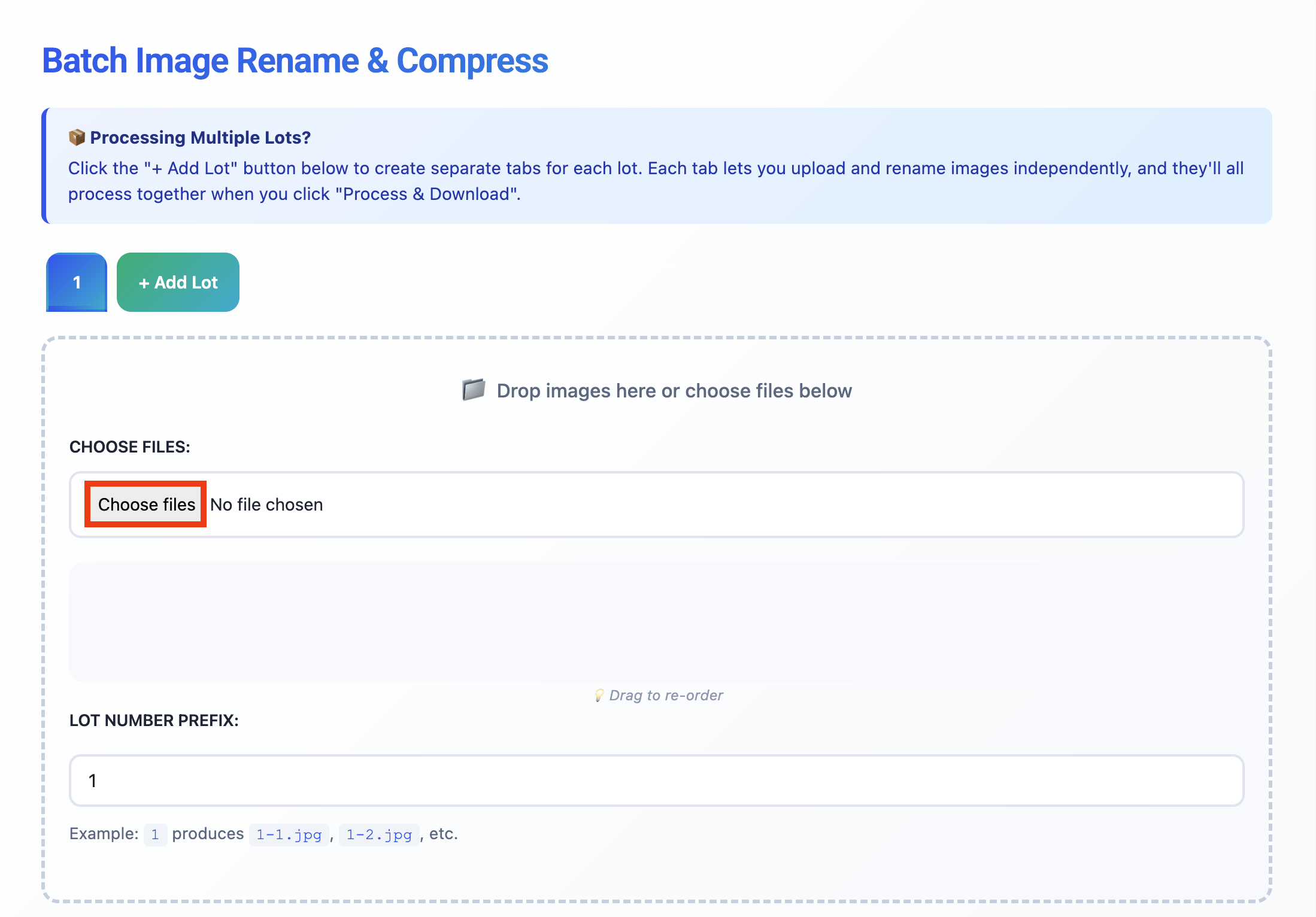
- For the lot you would like to rename images for, click ‘Choose files’ and select all images for that lot. Or, drag and drop the images.
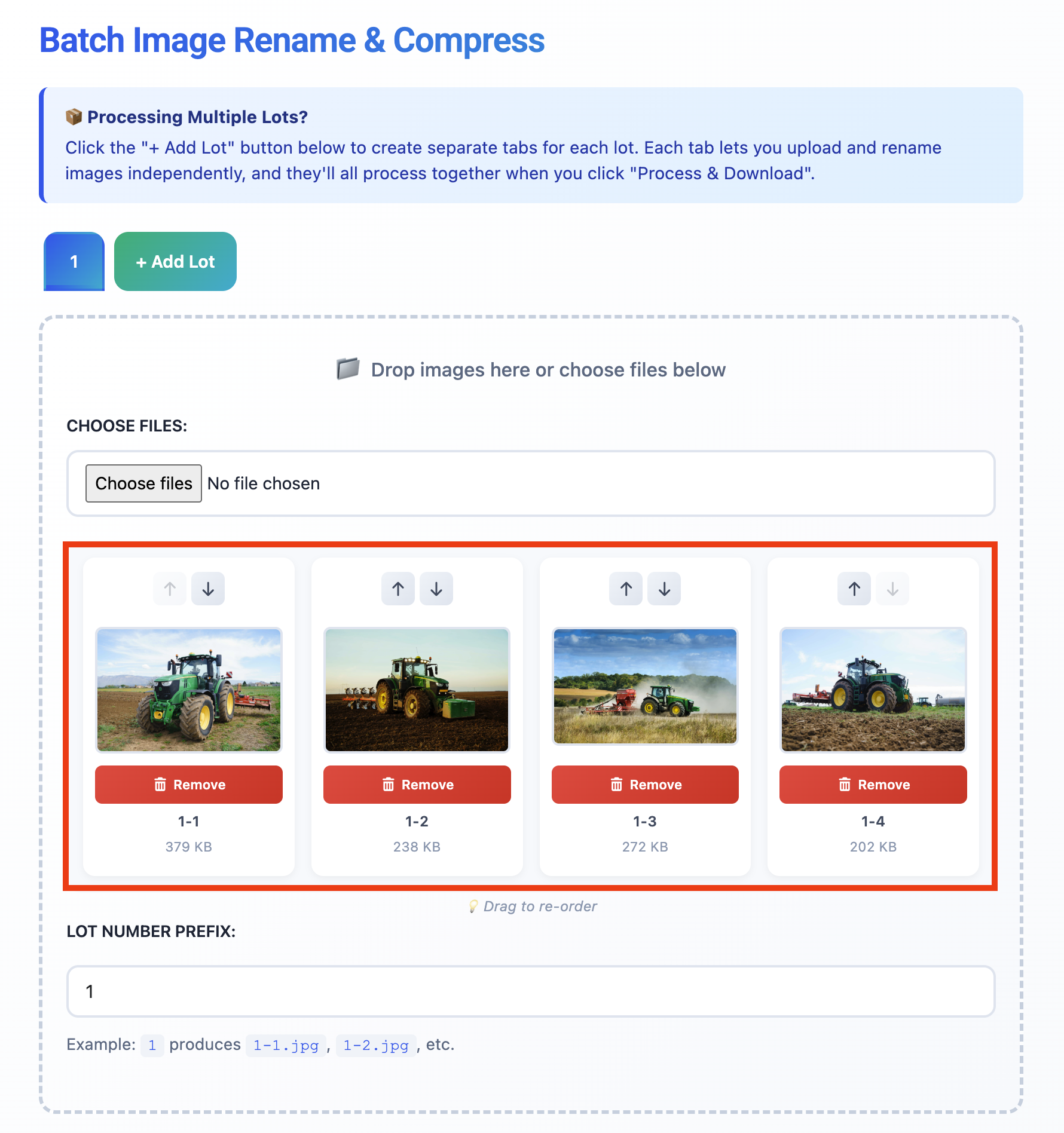
- Your images will appear. To change their order, simply drag and drop the images to re-order them as desired (or use the up/down arrows).
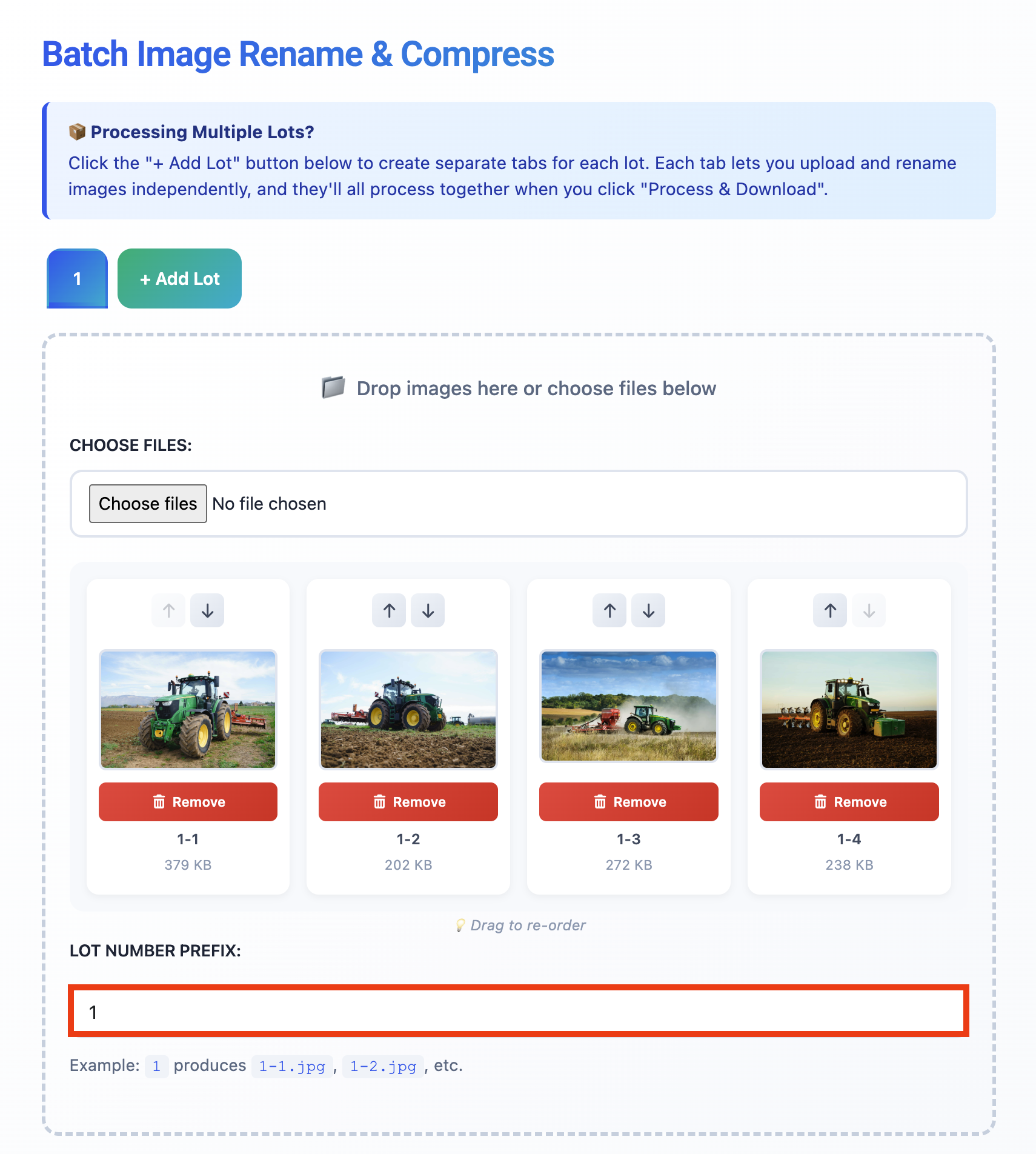
- Then, set the Lot Number that these photos are for.
For example, if these are photos for Lot 1, enter 1 into the Lot Number Prefix field.
- If you also have another Lot you would like to rename the pictures for, click ‘Add Lot’.
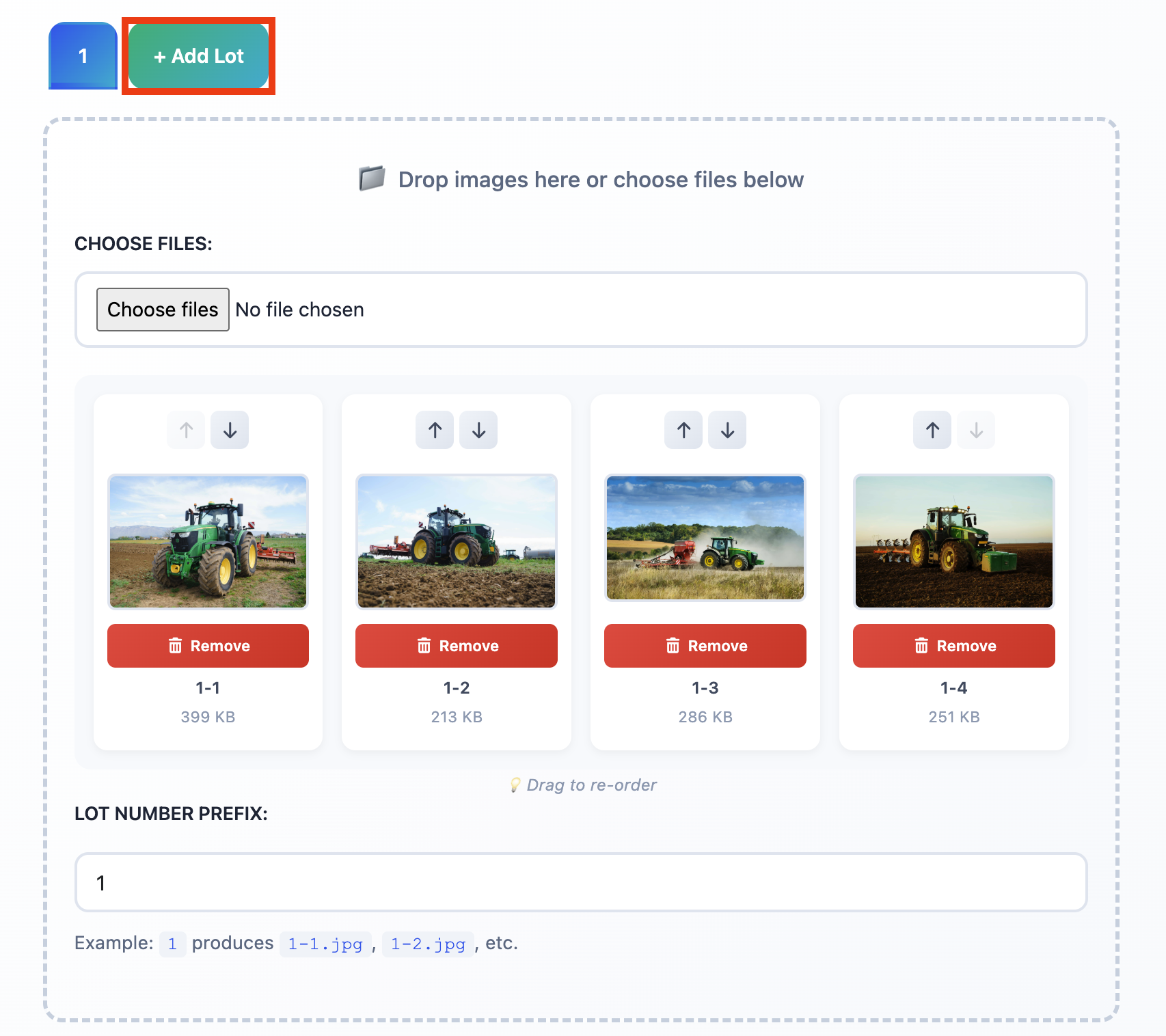
- This will create a second tab for the next lot’s photos. You can then ‘Choose files’ or drag and drop the photos for this next lot.
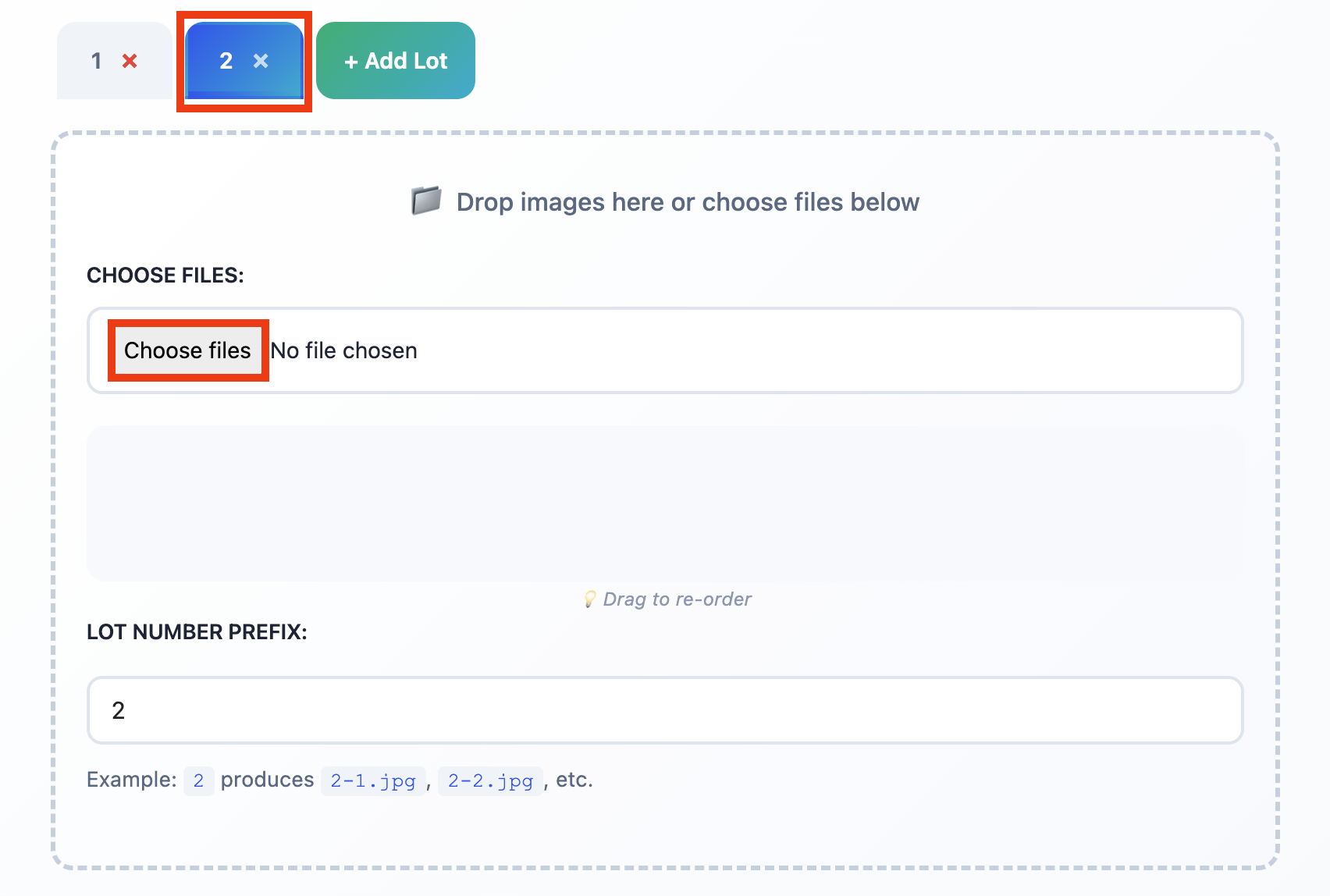
- Then, enter the Lot Number for this lot. E.g. if these images are for Lot 2, type 2.
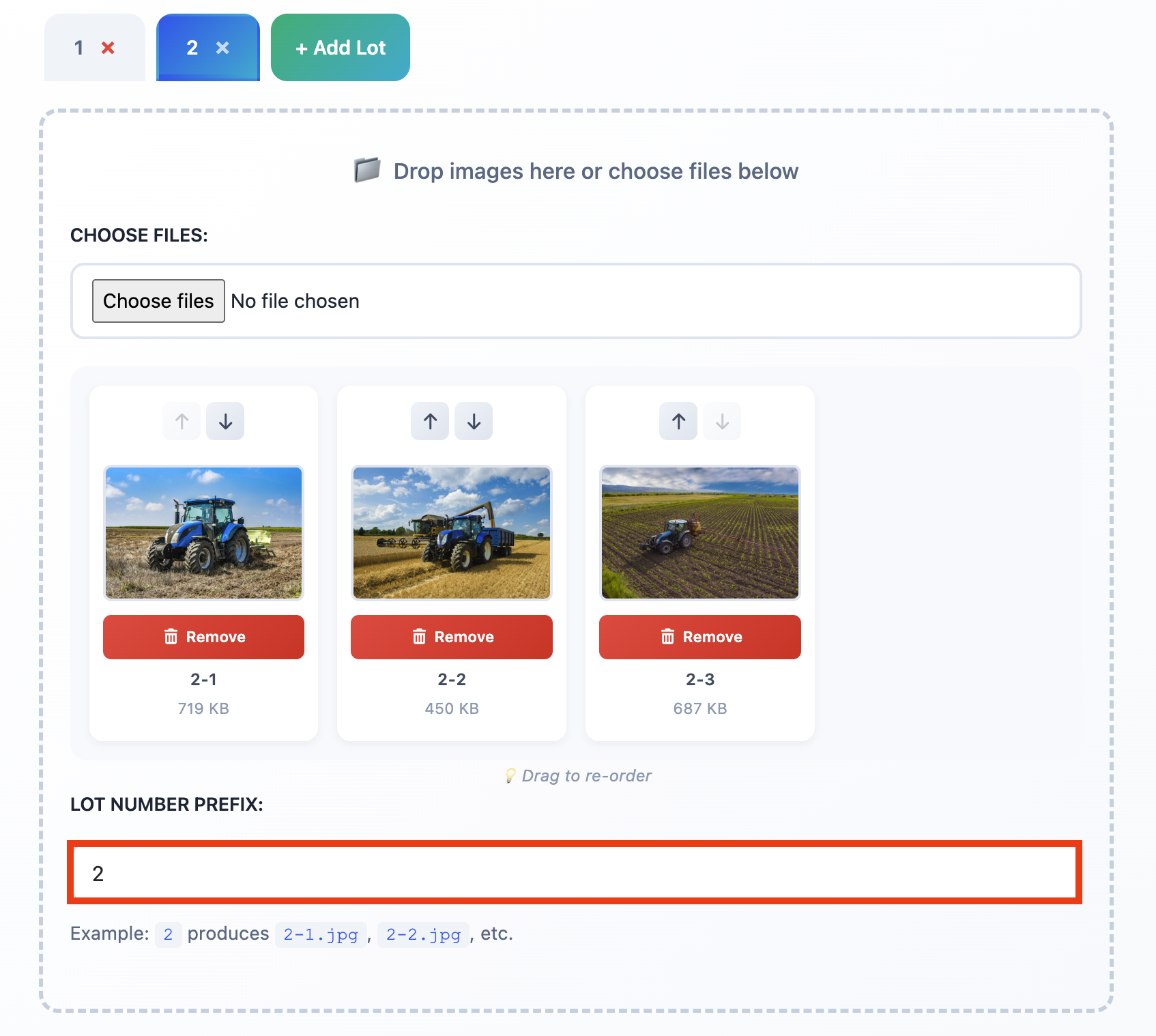
Simply repeat this process, clicking Add Lot, choosing your photos, and setting the Lot Number for each lot you would like to rename your images for.
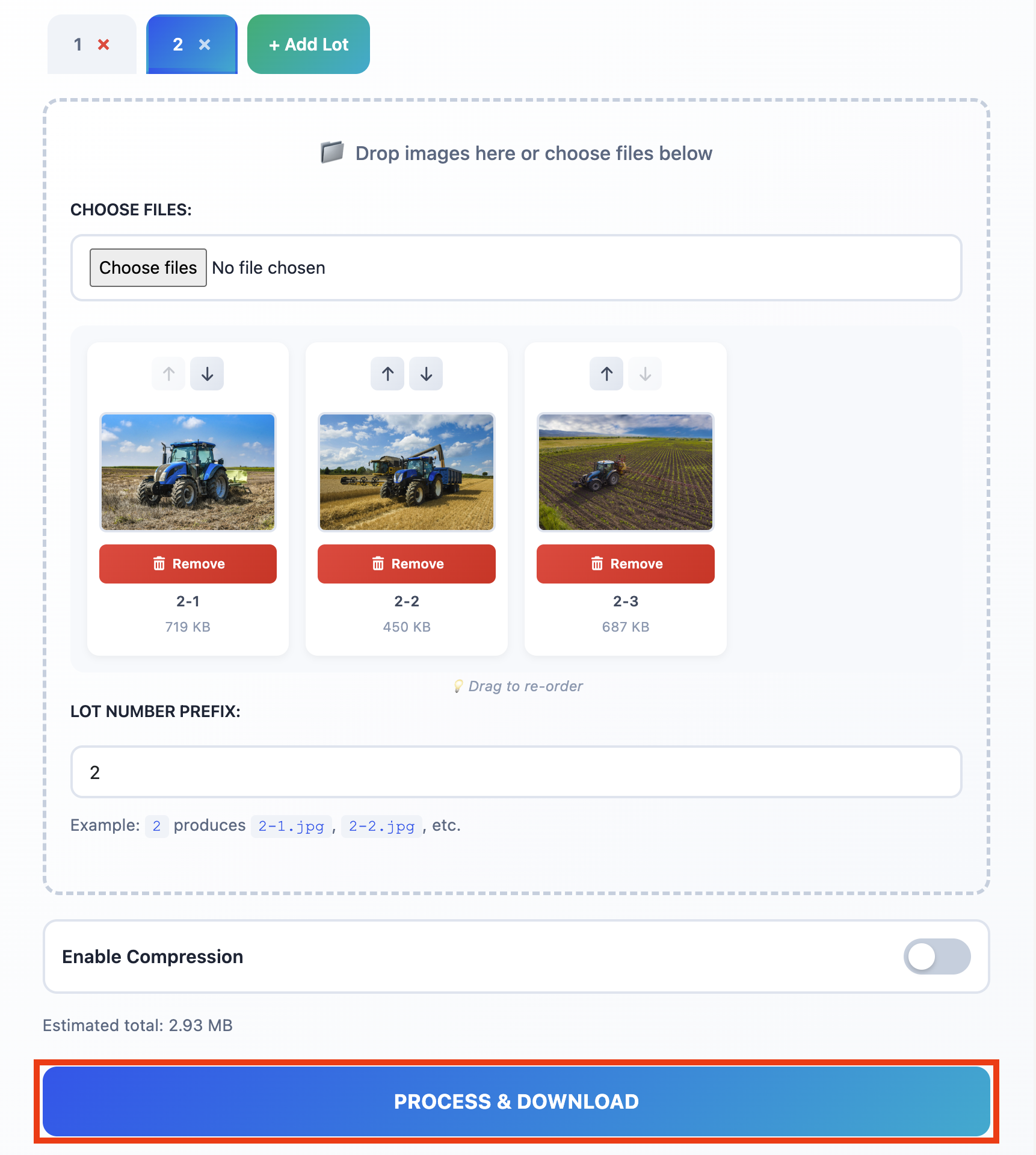
- Then, when you’re finished click the blue ‘Process & Download’ button.
- When prompted by your browser, click ‘OK’.
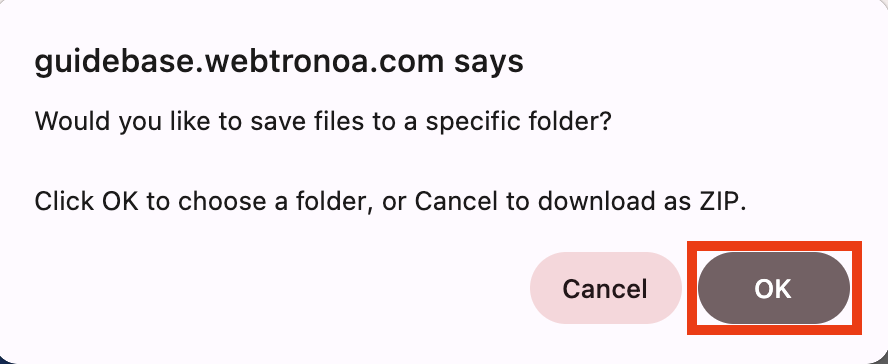
- This will download a file to your computer containing all the renamed image files.
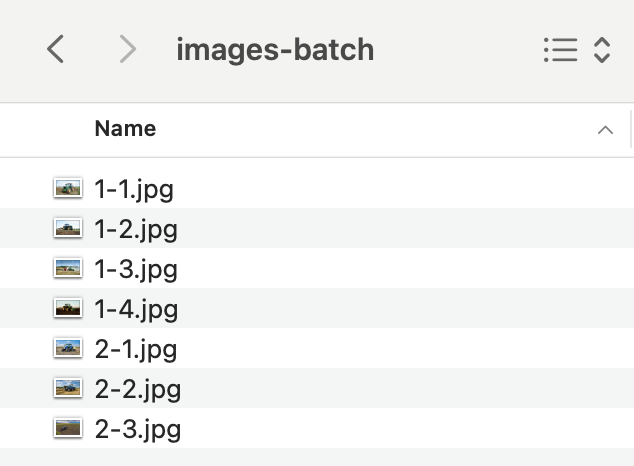
These photos are now ready to be bulk-uploaded to your lots via the Webtron Dashboard.