The Webcast Clerking Console is divided into three sections
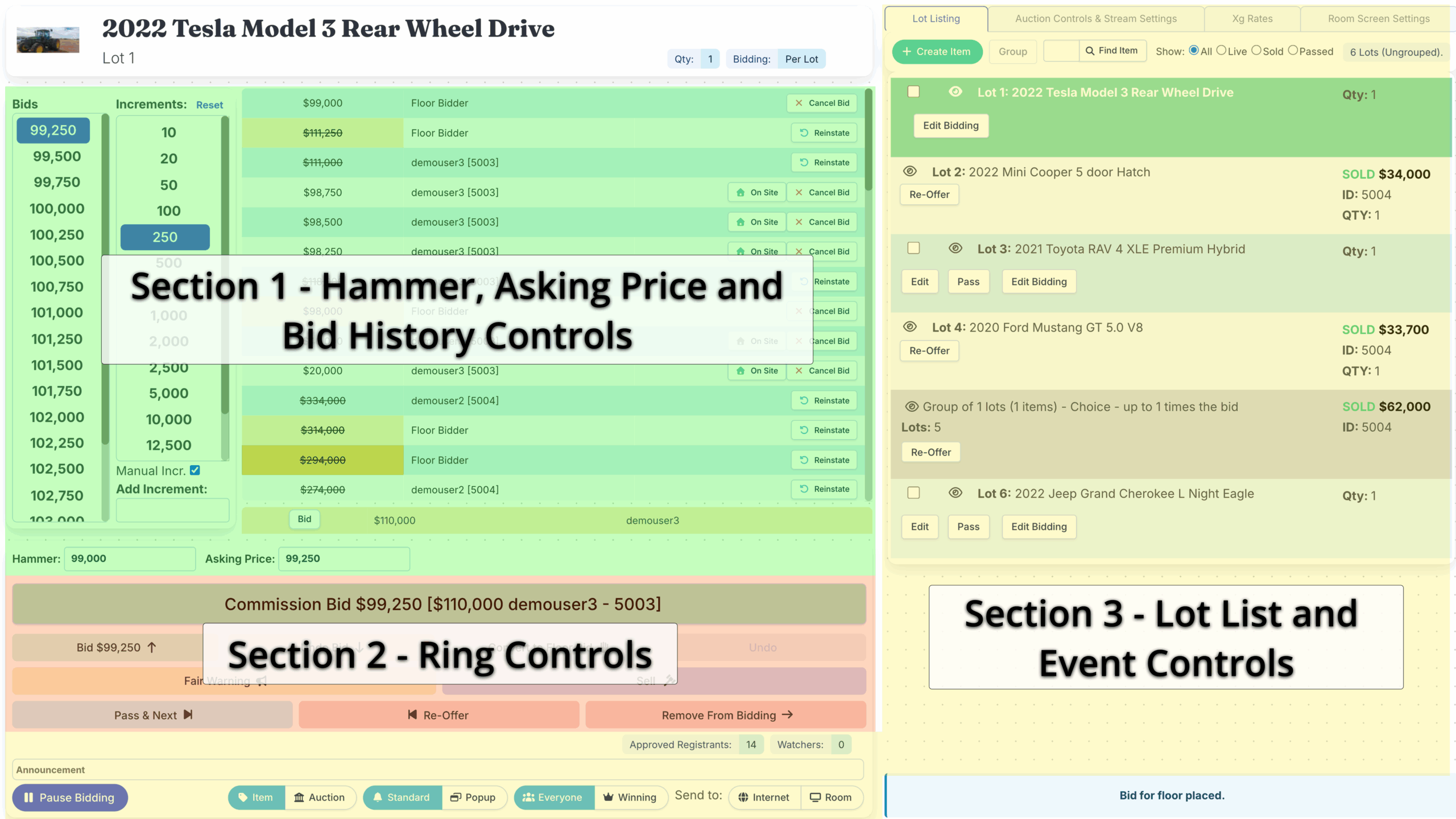
Section 1 – Hammer, Asking Price and Bid History Controls
Section 1 contains your:
- Bids/Asking Price list – The Bids column displays recommended Asking Prices based on the Opening Bid or Current Highest Bid
- Increments list – Displays your preset and added Increments list
- Auto/Manual Increments control toggle – Allows the Clerk to toggle between Auto Increments (which set and switch automatically based on the Opening Bid and Current Highest Bid amounts) or Manual Increments, which allows the Clerk to select an Increment from the list and switch to it instantly
- Add Increment field – Enables the Clerk to enter in an amount and add it to the Increments list (Please note, the Reset button at the top of the Increments list will remove any Increments added through this field)
- Bid History for the in-Ring Lot – plus Cancel, Reinstate (Returns cancelled bids to Current Highest Bid status) and On Site (Converts an Online Bid to a Floor Bid at the same amount)
- Hammer and Asking Price fields – Hammer sets a Floor Bid at your entered amount, Asking Price sets the next acceptable bid amount. Both the Hammer and Asking Price fields will update dynamically as bidding continues, the Hammer will display the Current Highest Bid, whilst Asking Price displays the next bid (as reflected by the Bid button on your Portal).
Section 2 – Ring Controls
Section 2 contains the controls for the current Lot in the Ring:
- Commission Bid shortcut – Places a bid on behalf of a bidder’s Commission/Auto Bid at the current Asking Price
- Bid # – For placing Floor Bids
- Undo Bid – For cancelling the current highest bid
- Convert to Floor Bid – Converts an Online Bid to a Floor Bid at the same amount
- Undo – Reopens a Lot after you have hit Sell
- Fair Warning – Deploys the Going Once, Going Twice, Third and Final Call message on your Portal
- Sell – Marks a Lot as sold and enables the Undo and Next buttons
- Pass & Next – Marks a Lot as unsold and pulls the next Lot straight into the Ring
- Re-Offer – Cancels all bids on a Lot and reverts it to it’s base Increment. Must be clicked twice to action.
- Remove From Bidding – Pulls the current Lot from the Ring and enables the Send button on all open Lots in the Lot Listing tab (Sold or Passed Lots can also be returned to the ring by clicking Re-Offer)
Section 3 – Lot List and Event Controls
Section 3 contains your full Lot List and other controls for your overall Webcast Auction:
- Lot Listing tab – contains the full list of all Lots added to this Auction, plus a search by Lot Number ( Find Item) and Show by Status filters (All, Live, Sold, and Passed)
- Auction Controls & Stream Settings – contains:
- Open Admin button – shortcut to return to the Dashboard’s View Auctions page
- Room Screen button – opens the Room Screen in a new tab
- Auctioneer Screen button – opens the Auction Screen in a new tab
- open debug info – for testing purposes, don’t use without coordination with Webtron staff.
- Start Auction button – for rolling your Webcast from Pre-Bidding to the Live Bidding phase early
- Pause Auction button – redundant, use the Pause Bidding button instead
- Mute Ping checkbox – Mutes the ding sound effect that plays when bids from online bidders are received
- Live Stream panel – launches your Video and Audio or Audio-only stream
- Keyboard Shortcuts – lists all of the keyboard shortcuts available for performing quick actions
- Xg Rates – for displaying alternate currencies on the Room Screen and setting their conversion rates.
- Room Screen Settings – for opening and toggling Room Screen elements
- Pause Bidding button – disables the Place Bid button for the in-Ring Lot (useful for preventing bids from disrupting setting the Asking Price at the start of a Lot)
- Announcement bar and controls – the Announcement bar enables the Clerk to send out messages on your Portal and the Room Screen during the Auction
- Announcement bar – the Clerk can type a message into the Announcement bar (max 120 characters)
- Item / Auction toggle – toggles between sending a message at the Item level (disappears once the Item is sold or passed) or at the Auction level (appears at the top of the Auction, above the in-Ring Gallery until manually removed)
Each of these Sections are covered by their own dedicated guides inside this chapter, use the Next Guide button at the bottom of this guide, or the chapter select in the left sidebar.