The Central Hub of the Webtron Dashboard
The Auctions & Items section of the Webtron Dashboard contains multiple essential menus and features, namely:
- View Auctions
- Access and Edit your Auctions
- Manage your Auction Items and Registrants
- View Bid Table bid histories and access other exports and reports
- Create a Timed Auction shortcut
- Create a Webcast Auction shortcut
- Create New Items
- Ghost Item menu
- Item Creation menu
- Import Items option
View Auctions
The View Auctions page is where you will spend 80-90% of your time in the Webtron Dashboard. From the View Auctions page, you’ll be able to access almost every vital Auction Section inside the Dashboard, such as;
- Creating New Auctions
- Editing existing Auctions
- Viewing and Managing the Item and Registrant Lists for each Auction
- Managing Bids and Offers through the Bid Table and Offer Table
- Generating and Sending Invoices through the Invoices menu
- Previewing Auction results in the Summary Table
- Exporting Auction results with the Auction Export
For all intents and purposes, the View Auctions page is the anchor on the Webtron Dashboard. If you get lost at any point, you can easily re-orient yourself by clicking the Auctions & Items dropdown, then click View Auctions to return to the View Auctions page.
Navigation Path – Dashboard Home to View Auctions
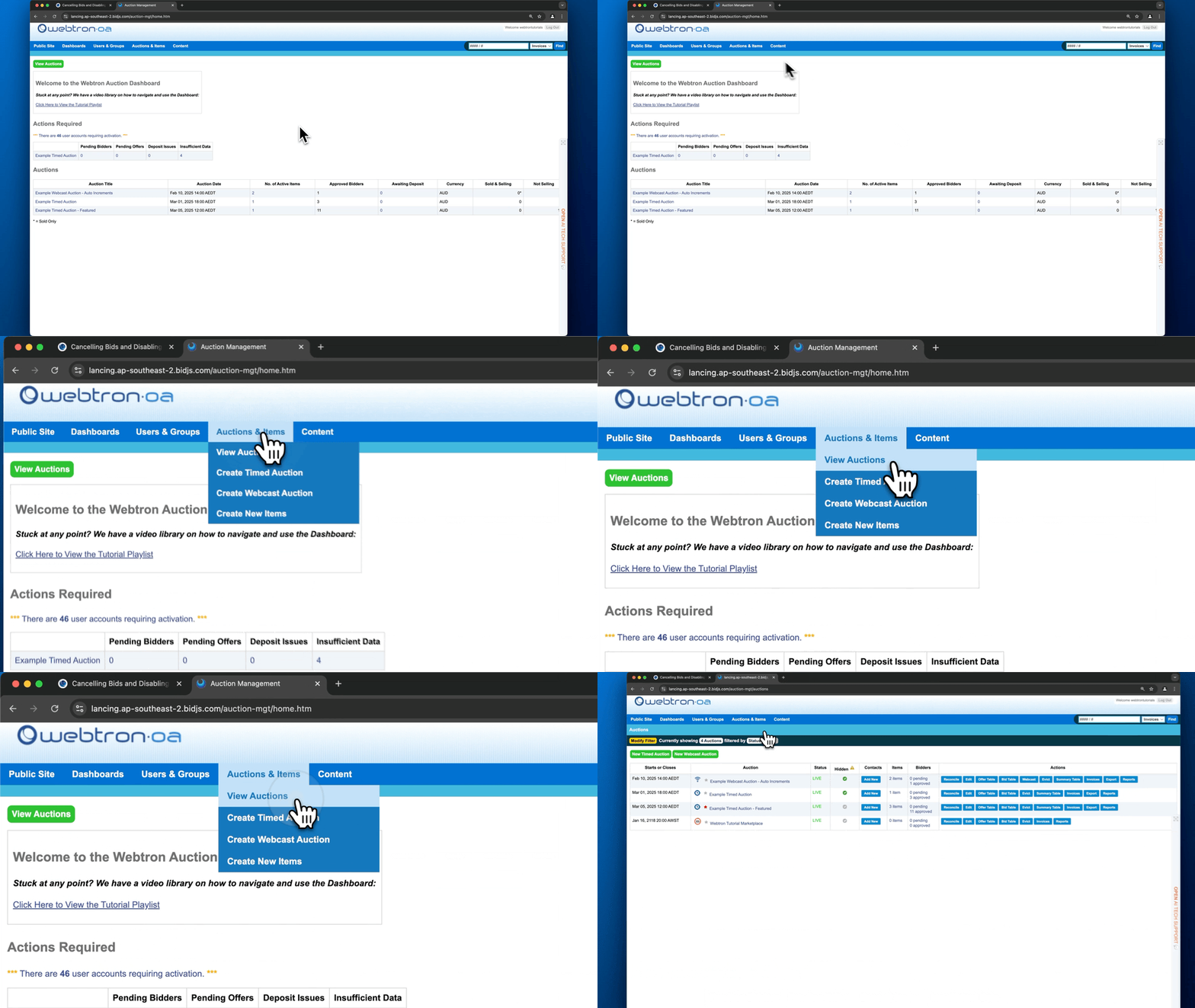
Create Timed Auction and Create Webcast Auction
Whilst the View Auctions page contains Create New Auction buttons, the Auctions & Items dropdown also houses shortcuts to create either a new Timed Auction, or a new Webcast Auction, whichever you need.
Create New Items
The Auctions & Items dropdown also houses one of the most important shortcuts inside the Webtron Dashboard, Create New Items. Clicking this shortcut will take you to the Ghost Items menu, from which you can choose an Auction you’ve created, then either upload your CSV Lotting spreadsheet or open the Item Creation menu.
Missing Options – If your Auctions & Items dropdown is missing any of the options listed above, it may be due to access restrictions for your assigned Admin Tier. Get in touch with us at support@webtronoa.com if you need access to any of the missing options.