This guide covers how to enable Online Payment services such as PayPal and Stripe as a payment option for your bidders on your Xero invoices.
Before proceeding with this guide, you must have connected at least one fully verified Stripe account to your Xero account.
Stripe will not appear as a payment option on any Invoices you have created or imported prior to editing your Branding Theme. Ensure you have selected and saved Stripe as an Online Payments option before importing your next batch of Invoices.
Enabling Stripe Payments on Xero Invoices (2026 Dashboard Update)
Step 1: Navigate to your Organisation Settings > Invoice Settings
After you have connected your Online Payment service of choice, navigate to your Xero Dashboard’s home page, click on the name of your Organisation at the top-left of your screen, then click Settings:
After the Settings menu loads, under the Sales section click Invoice settings:
Step 2: Edit your Standard/Default Invoice Template/Branding Theme
The Invoice settings menu will now open and you may see one of two layouts:
- The New Branding Theme window
- The Standard and Special Projects default Invoices
If your Xero account is brand new and you haven’t set up a Branding Theme, the New Branding Theme window will appear, follow the prompts as one of the options will ask you if you want to enable Card/Online Payments.
If your Xero account is older or you have set up a Branding Theme prior to connecting Stripe, float your cursor over the top-right of your default Invoice panel (usually labelled “Standard“) and click on the Options dropdown, then click Edit (top option):
After clicking Edit, the Edit Branding Theme panel will appear at the centre of your screen. On the bottom-right quarter of the panel you’ll find several Payment Services options, click on the first dropdown labelled Payment Services (Credit Card):
If you have successfully connected a Stripe account to your Xero, Stripe will be listed as the top option in the dropdown, if not the dropdown will appear empty.
Select Stripe and then click the green Save button at the bottom-right of the panel. Stripe will now appear as a payment option on all future Invoices your create or import.
Adding Bank Transfer Details – Terms and Payment Advice Recommendation
In addition to connecting Stripe, we recommend adding your Bank Transfer details (BSB and Account Number) to your Invoices as a fallback payment option for your bidders
This can be done by following the steps above, then inside the Edit Branding Theme’s, add your BSB and Account Number to the Terms & Payment Advice field here:
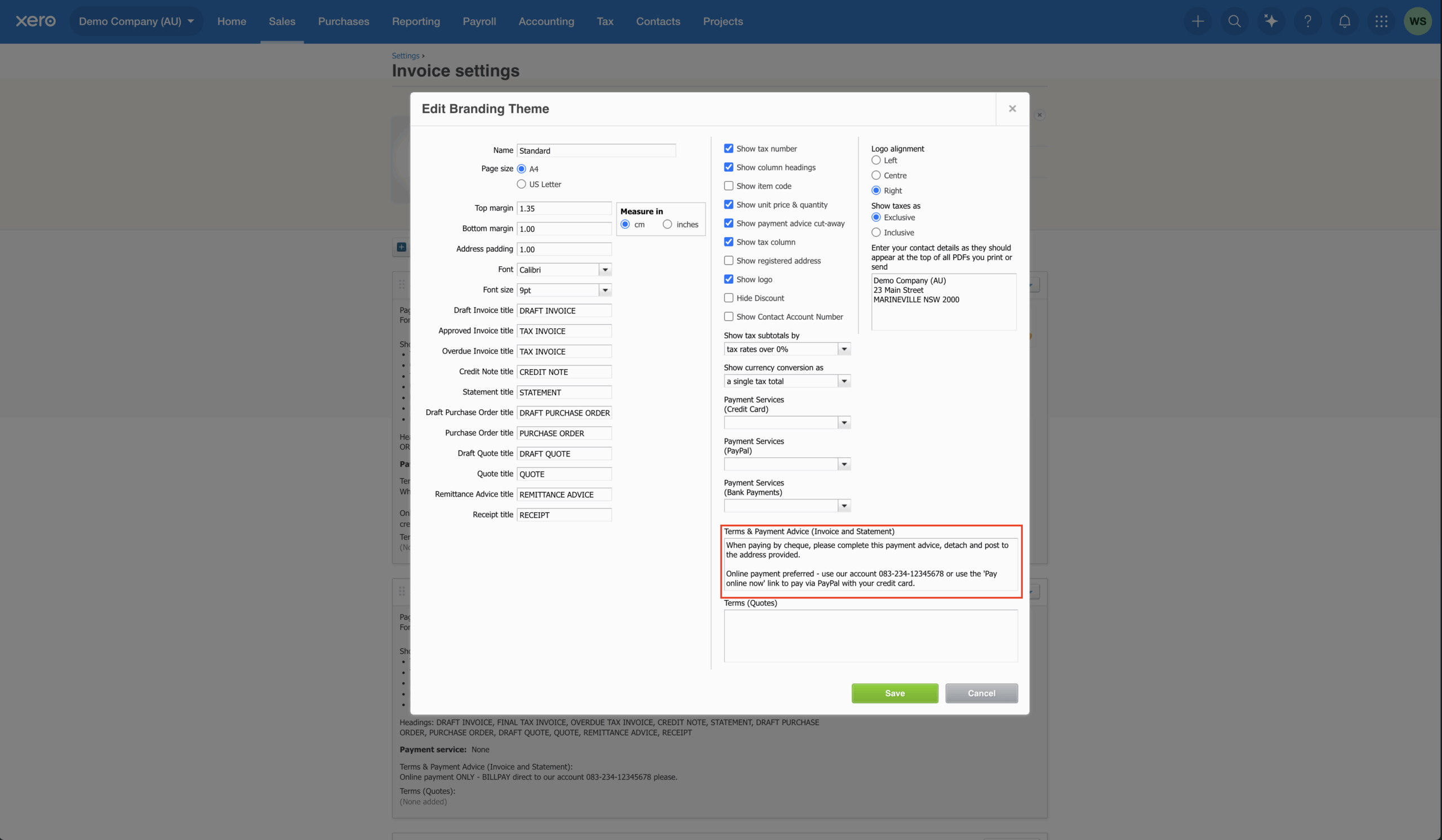
As part of the Terms & Payment Advice, we recommend adding a line stating:
“If paying via Bank Transfer, please quote your Invoice Number in your Transfer notes.”
Payments made via Bank Transfer must be manually reconciled in Xero (part of marking your Invoices as paid) and adding the “please quote” line will help ease this process for you or your Accountant.